MudExFileDisplay
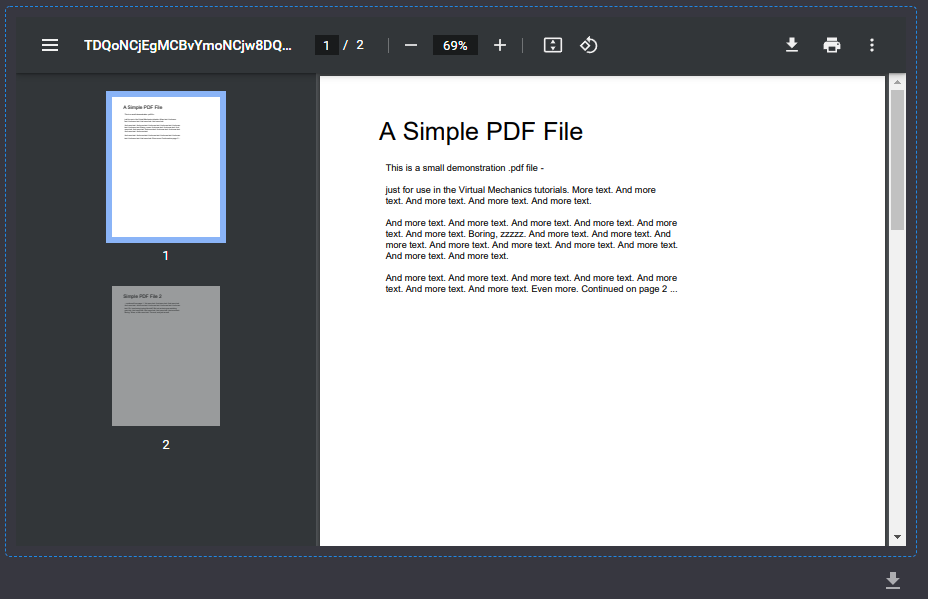
The MudExFileDisplay component is designed to display file contents with automatic format detection and preview capabilities. It can handle URLs or streams and delivers the best possible display for various file types.
Features
- ✅ Automatic Format Detection - Detects file type and chooses best renderer
- ✅ Multiple File Types - PDF, images, videos, audio, text, ZIP archives, and more
- ✅ URL or Stream Support - Works with both URLs and content streams
- ✅ Extensible - Register custom file display components
- ✅ ZIP Archive Support - Browse and extract ZIP files
- ✅ Markdown Support - Render markdown files
Basic Usage
Display from URL
<MudExFileDisplay FileName="document.pdf"
                  ContentType="application/pdf"
                  Url="@fileUrl" />

@code {
    private string fileUrl = "https://example.com/document.pdf";
}
Display from Stream
<MudExFileDisplay FileName="image.jpg"
                  ContentType="image/jpeg"
                  ContentStream="@imageStream" />

@code {
    private Stream imageStream;
}
Display Uploaded File
<MudExFileDisplay FileName="@file.Name"
                  ContentType="@file.ContentType"
                  ContentStream="@file.OpenReadStream()" />

@code {
    private IBrowserFile file;
}
Supported File Types
- Documents: PDF, DOC, DOCX
- Images: JPG, PNG, GIF, SVG, BMP, WEBP
- Videos: MP4, WEBM, OGG
- Audio: MP3, WAV, OGG
- Text: TXT, CSV, JSON, XML
- Code: JS, CS, HTML, CSS (with syntax highlighting)
- Archives: ZIP (with file browser)
- Markdown: MD (rendered as HTML)
MudExFileDisplayZip
Display ZIP archive contents with a file browser:
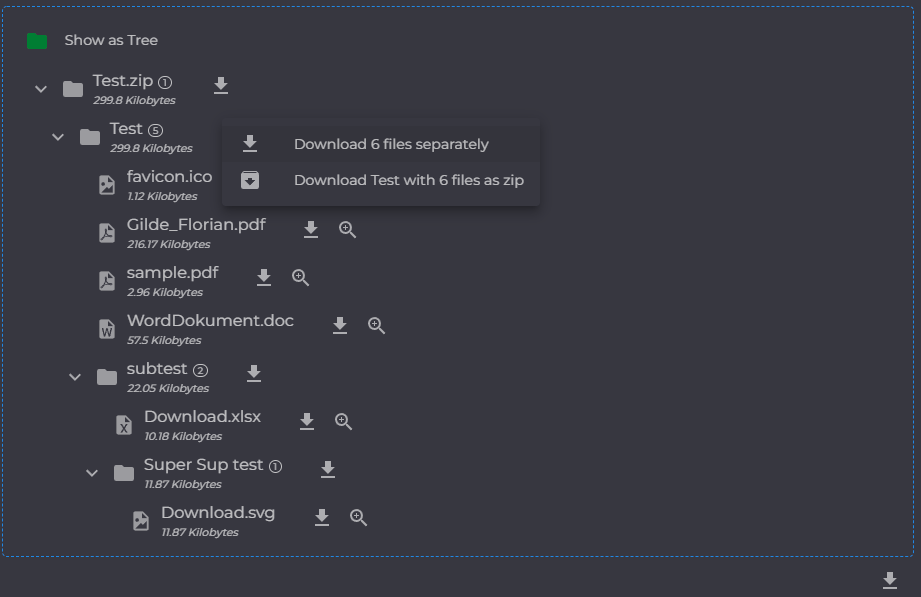
<MudExFileDisplayZip RootFolderName="@FileName"
                     ContentStream="@zipStream"
                     AllowDownload="true" />

@code {
    private Stream zipStream;
}
MudExFileDisplayDialog
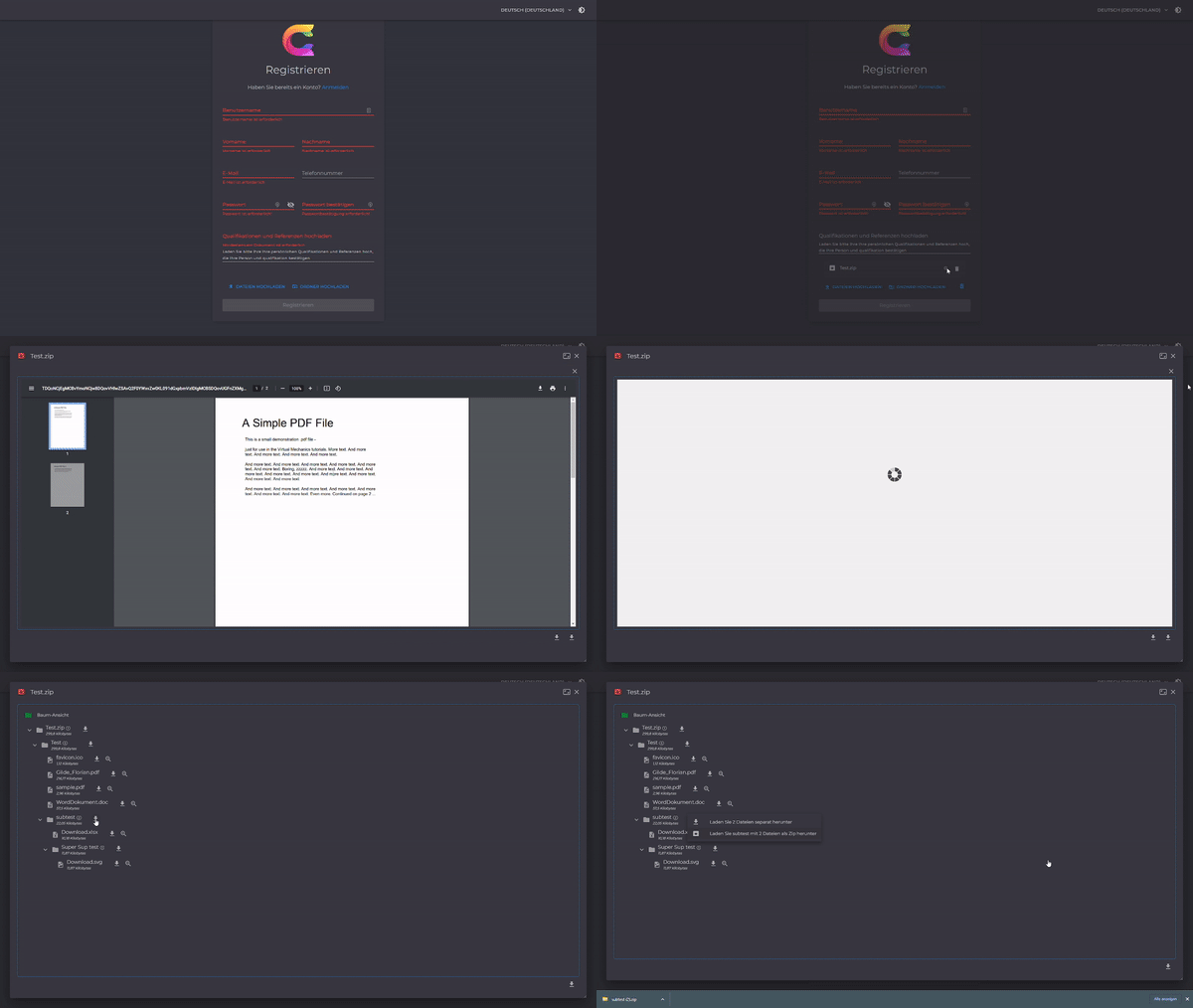
Display files in a dialog:
Using Static Helper
await MudExFileDisplayDialog.Show(
    _dialogService,
    dataUrl,
    fileName,
    contentType,
    ex => ex.JsRuntime = _jsRuntime
);
With IBrowserFile
IBrowserFile file = selectedFile;
await MudExFileDisplayDialog.Show(
    _dialogService,
    file,
    ex => ex.JsRuntime = _jsRuntime
);
Manual Usage
var parameters = new DialogParameters
{
    {nameof(Icon), BrowserFileExtensions.IconForFile(contentType)},
    {nameof(Url), url},
    {nameof(ContentType), contentType}
};
await dialogService.ShowEx<MudExFileDisplayDialog>(title, parameters, optionsEx);
Parameters
| Parameter | Type | Default | Description |
|---|---|---|---|
FileName |
string |
- | Name of the file to display |
ContentType |
string |
- | MIME type of the file |
Url |
string |
- | URL to the file |
ContentStream |
Stream |
- | Stream containing file data |
AllowDownload |
bool |
true |
Allow file download |
ForceNativeRender |
bool |
false |
Force native rendering |
Custom File Display
Implement IMudExFileDisplay to create custom file display components:
public class MyCustomFileDisplay : ComponentBase, IMudExFileDisplay
{
    public bool CanHandleFile(string fileName, string contentType)
    {
        return contentType == "application/x-custom";
    }

    public RenderFragment Render()
    {
        return builder =>
        {
            // Your custom rendering logic
        };
    }
}
Register your custom display:
// In your service configuration
builder.Services.AddScoped<IMudExFileDisplay, MyCustomFileDisplay>();
Complete Example
@page "/file-viewer"
@inject IDialogService DialogService

<MudFileUpload T="IBrowserFile" OnFilesChanged="@OnFileSelected">
    <ButtonTemplate>
        <MudButton HtmlTag="label"
                   Variant="Variant.Filled"
                   Color="Color.Primary"
                   StartIcon="@Icons.Material.Filled.CloudUpload"
                   for="@context">
            Select File to Preview
        </MudButton>
    </ButtonTemplate>
</MudFileUpload>

@if (selectedFile != null)
{
    <MudPaper Class="mt-4 pa-4">
        <MudExFileDisplay FileName="@selectedFile.Name"
                          ContentType="@selectedFile.ContentType"
                          ContentStream="@selectedFile.OpenReadStream(maxAllowedSize: 10485760)" />
    </MudPaper>

    <MudButton Class="mt-2"
               Variant="Variant.Filled"
               Color="Color.Primary"
               OnClick="@ShowInDialog">
        View in Dialog
    </MudButton>
}

@code {
    private IBrowserFile selectedFile;

    private void OnFileSelected(InputFileChangeEventArgs e)
    {
        selectedFile = e.File;
    }

    private async Task ShowInDialog()
    {
        await MudExFileDisplayDialog.Show(DialogService, selectedFile);
    }
}
Live Demo
Experience the component: File Display Demo
See Also
- Upload Edit - File upload component
- Object Edit - Form generation
- Dialog Extensions - Enhanced dialogs