Coworkee Studio
Coworkee Studio is the desktop wizard of the command line. It walks through a new app page by page, explains what every choice brings and costs, previews logo, theme and sign-in design, lets you describe your entities and has the CLI create the solution. It runs on Windows, macOS and Linux.
Install and start
That is all: coworkee ui installs the Studio (global tool Coworkee.Studio, command coworkee-ui) in the version of the CLI when it is missing, updates it when it is older, and starts it. Further arguments go to the Studio:
| Argument | |
|---|---|
--spec <file> |
Opens an app spec |
--output <folder> |
Folder in which the app folder is created |
--theme light or dark |
Color mode (default: the system's) |
--lang en or de |
Language (default: the system's) |
For local builds of Coworkee: coworkee ui --add-source <folder> --studio-version <version>.
The pages
The panel on the left shows where you are; every page you have seen is one click away. Alt+→ and Alt+← go forward and back, Ctrl+O and Ctrl+S open and save a spec, F1 opens the help. The badge at the top shows whether the spec is valid; problems appear on the page they belong to.
Welcome
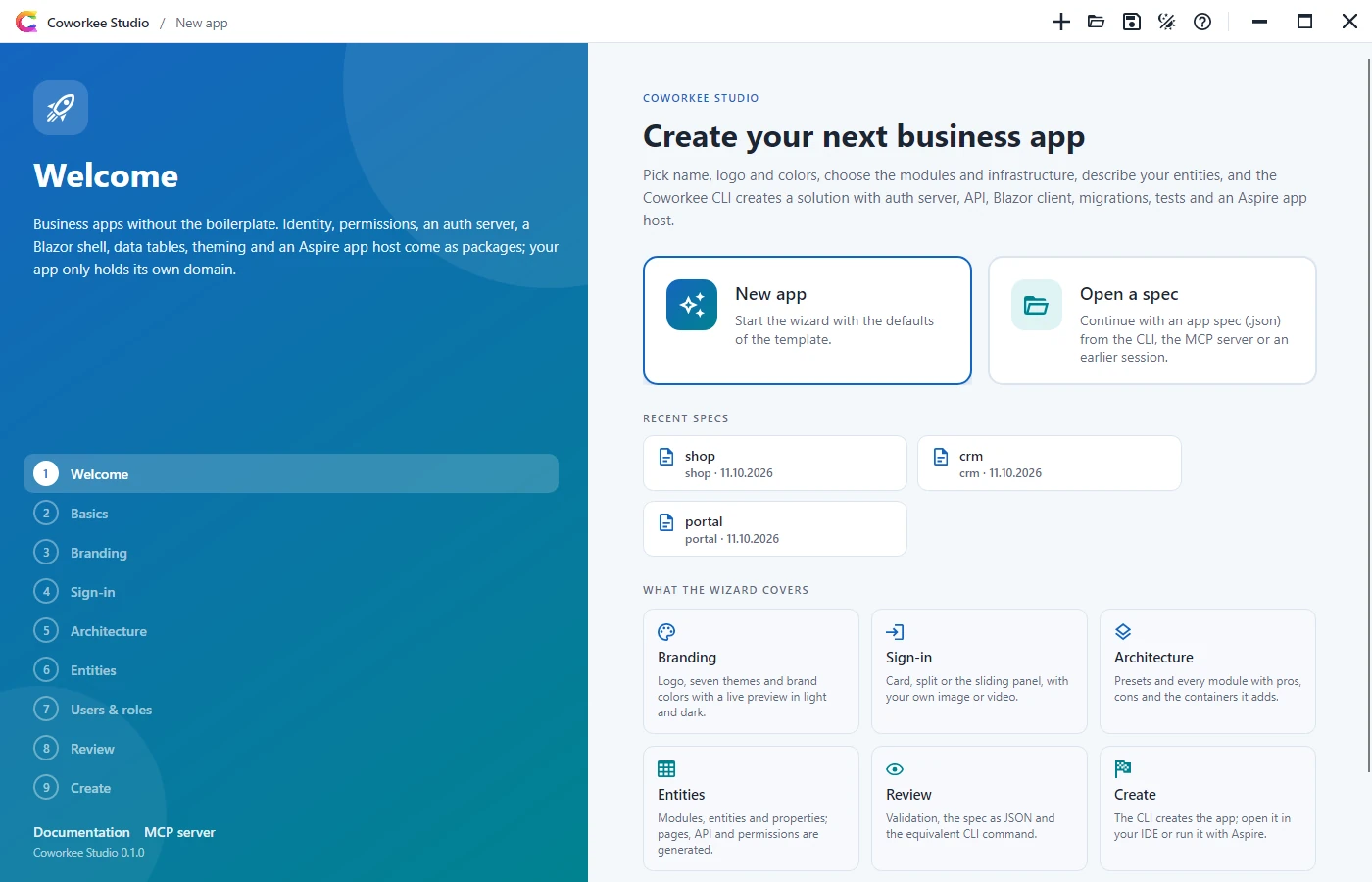
Start a new app, open a spec (.json from the CLI, the MCP server or an earlier session) or pick one of the recent specs.
Basics
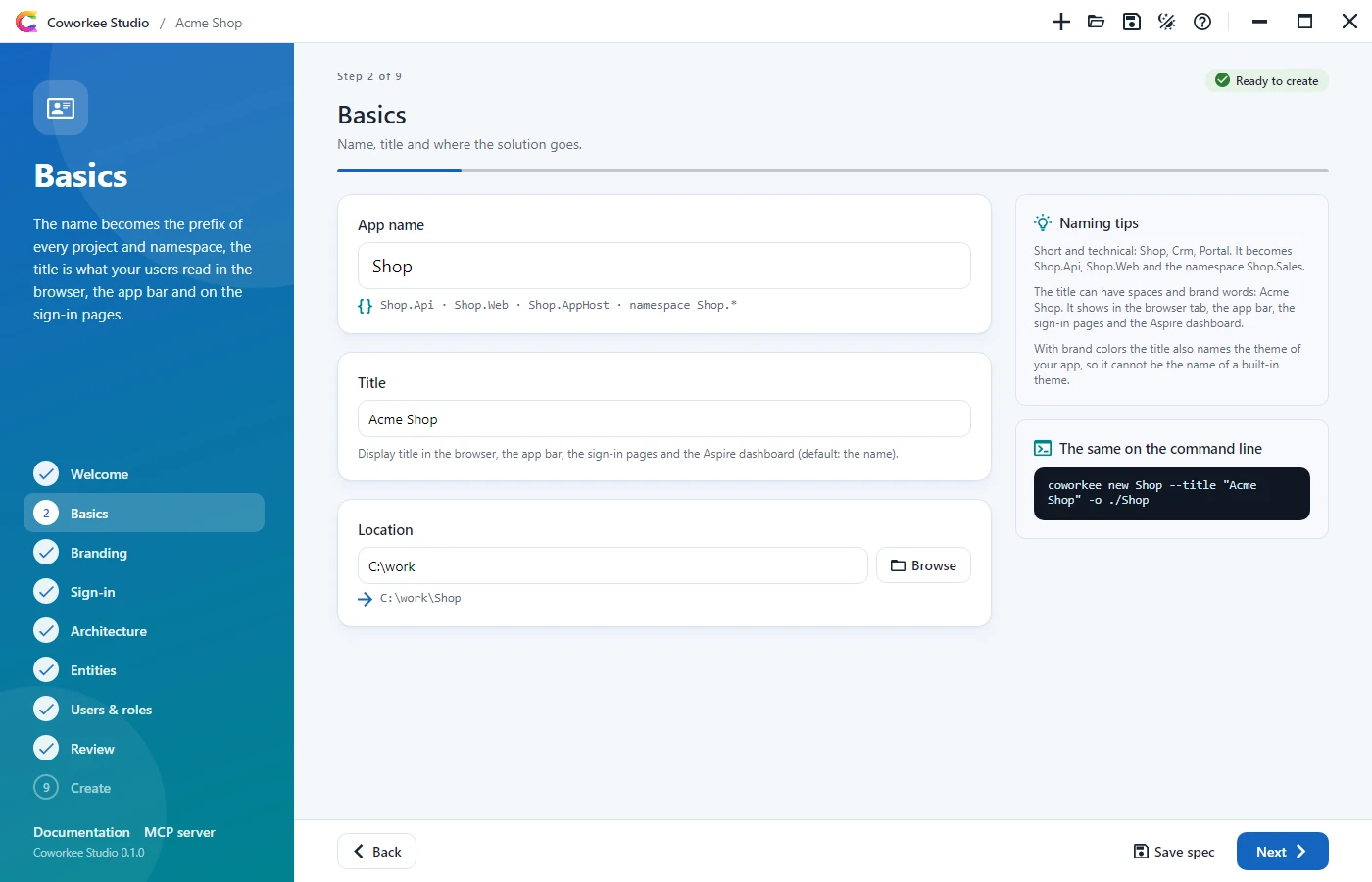
The name becomes the prefix of every project and namespace (Shop.Api, Shop.Web), so it is checked like the CLI checks it: a letter, then letters or digits. The title is what users read in the browser, the app bar, on the sign-in pages and in the Aspire dashboard. The location is the folder in which the app folder is created.
Branding
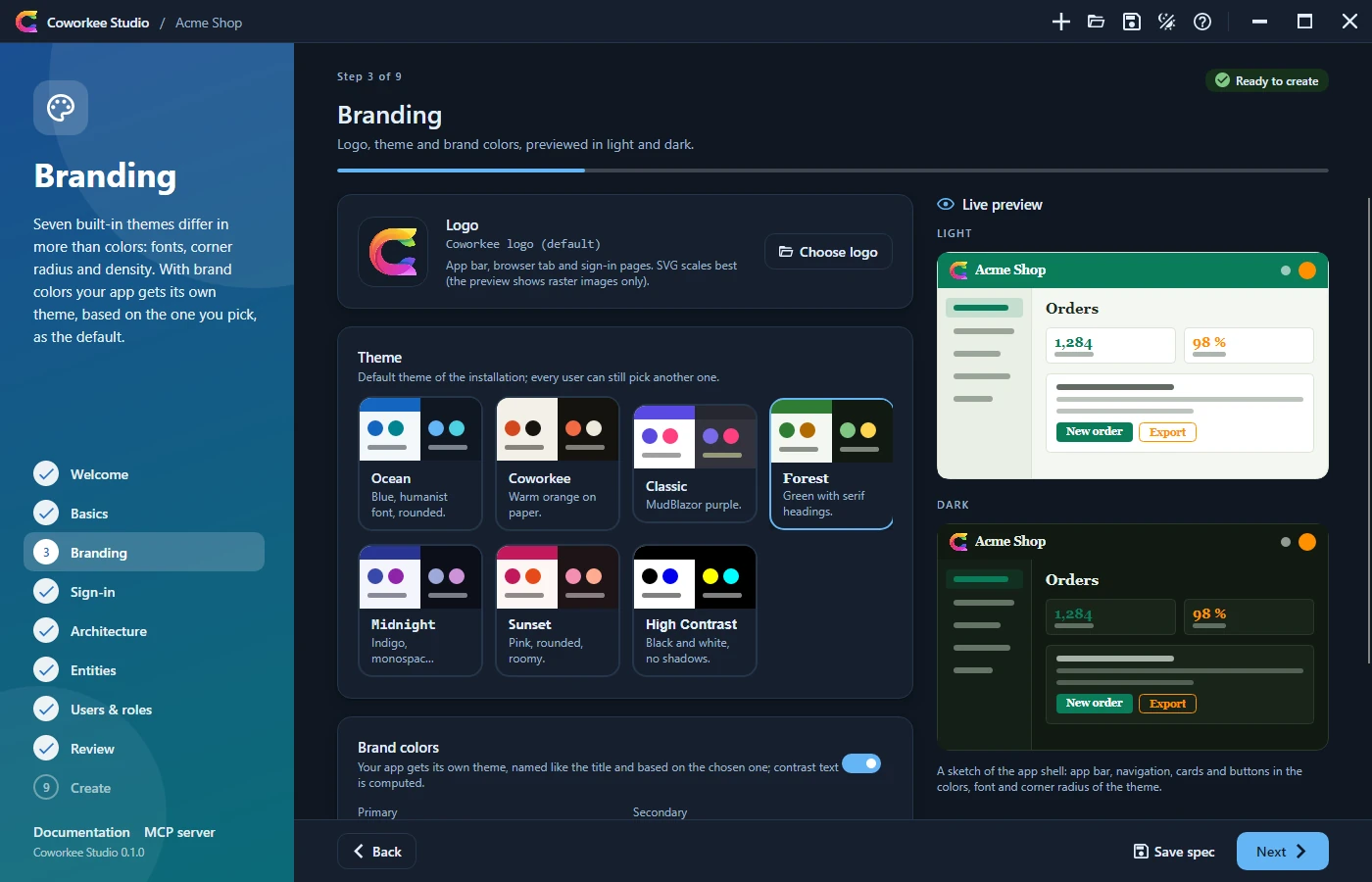
Logo, the seven built-in themes as cards in light and dark, and brand colors with a color picker. The live preview draws the app shell (app bar, navigation, cards, buttons) in the colors, font and corner radius of the theme, in light and dark side by side. With brand colors the app gets its own theme, named like the title and based on the chosen one.
Sign-in
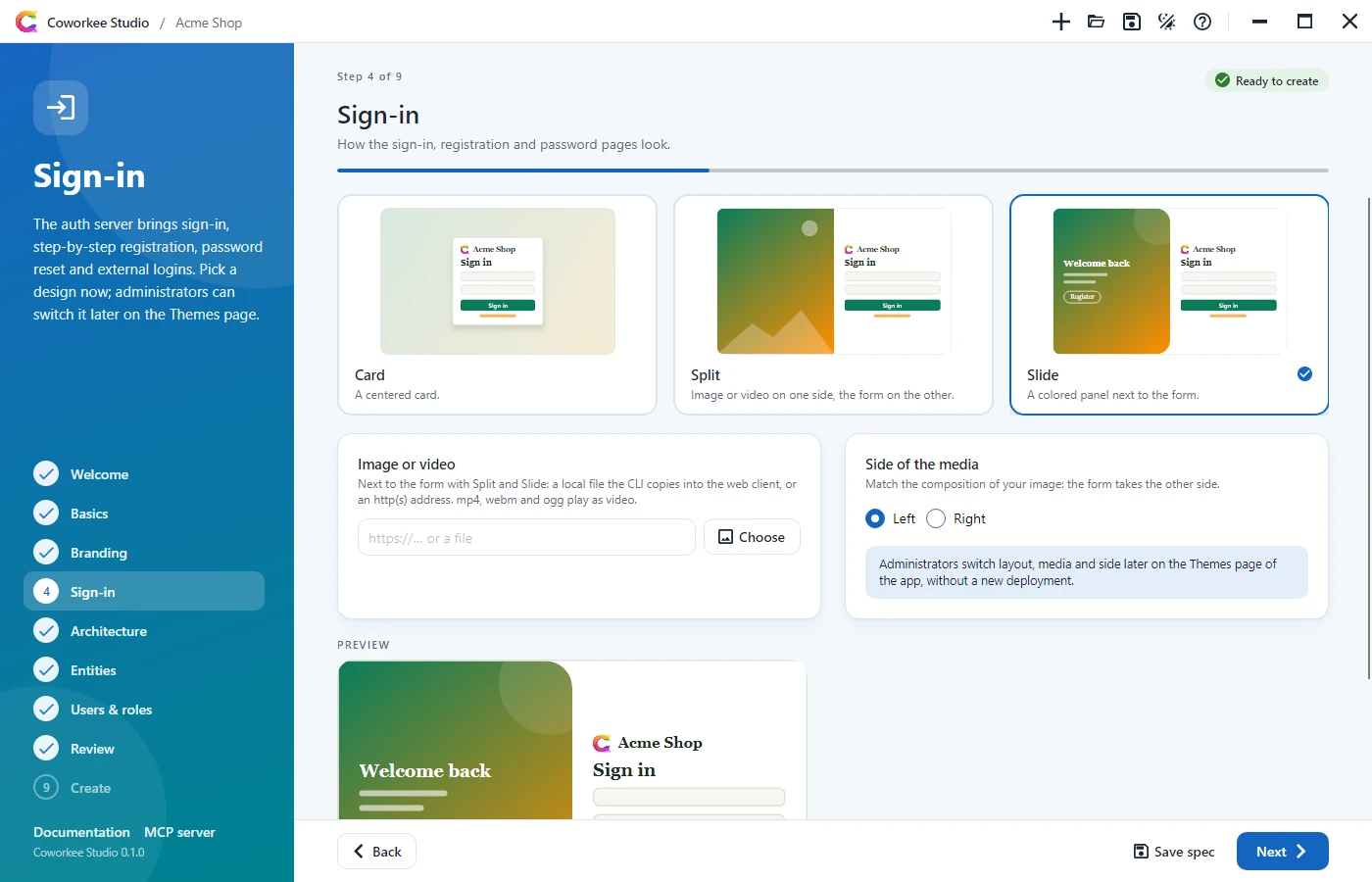
Card, Split or Slide, drawn as small animated sketches of the real sign-in pages, with an image or video next to the form and its side.
Architecture
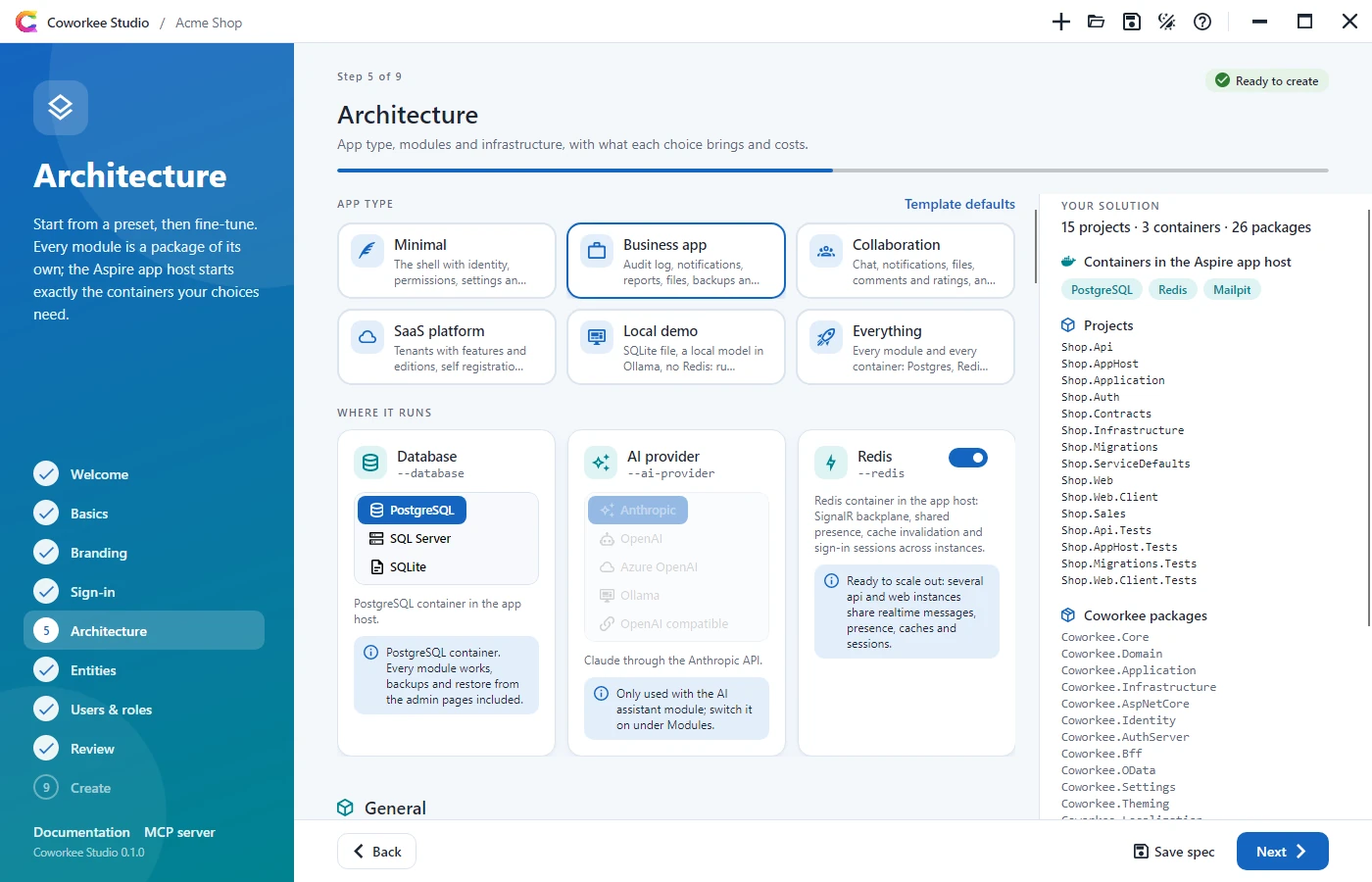
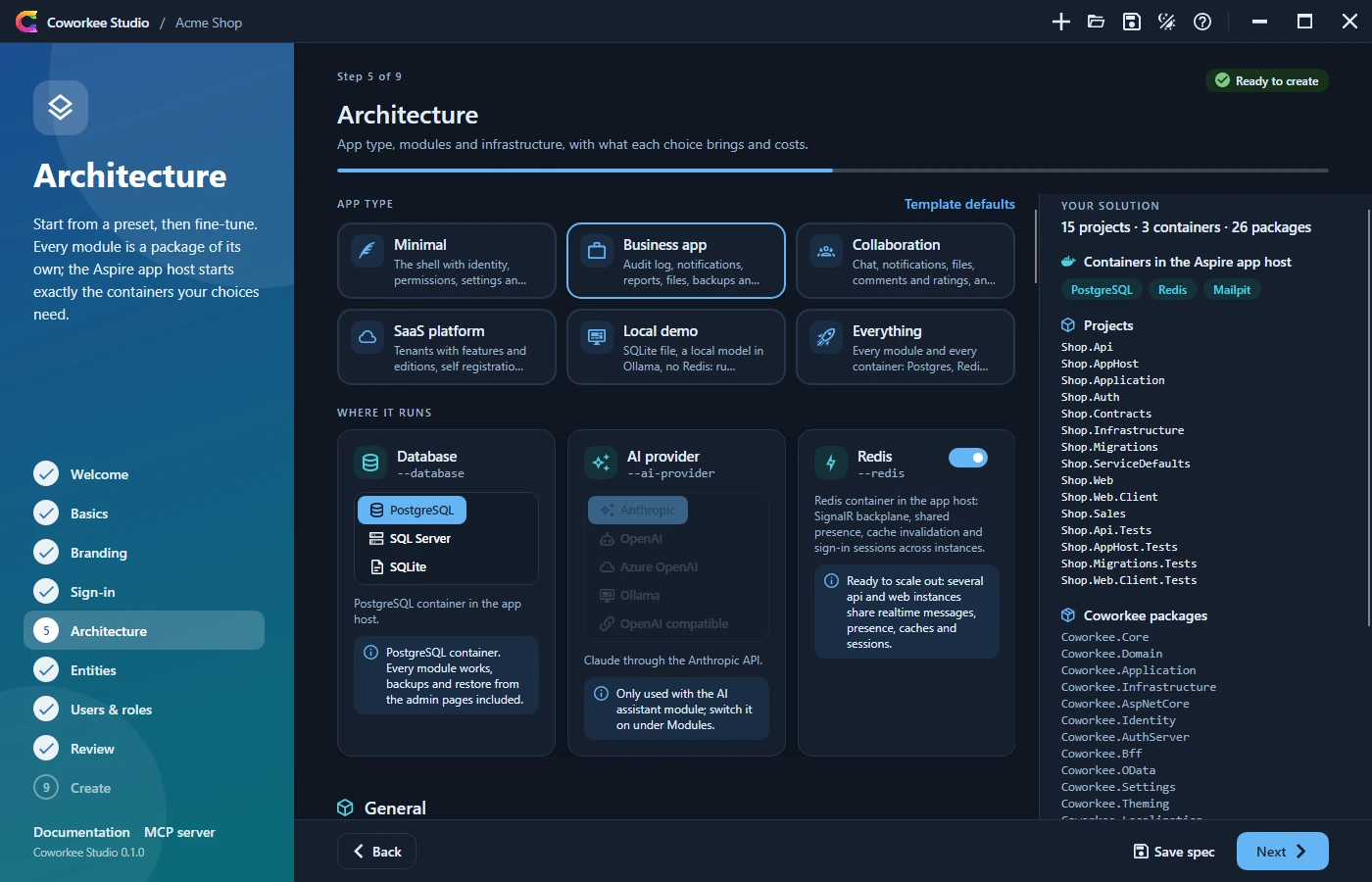
Presets for the app type set the modules and the infrastructure, each with its trade-off in the text:
| Preset | Database | AI provider | Redis | For |
|---|---|---|---|---|
| Minimal | Postgres | (no assistant) | off | The shell, one instance; add modules later |
| Business app | Postgres | (no assistant) | on | Audit log, files, backups, client entities, CI |
| Collaboration | Postgres | Anthropic | on | Chat, comments and the assistant across instances |
| SaaS platform | Postgres | Azure OpenAI | on | Tenants, editions, Keycloak, RabbitMQ, Azure Blob |
| Local demo | SQLite | Ollama | off | Offline on one machine without keys; one writer at a time, no backups |
| Everything | Postgres | Ollama | on | Every module and every container |
Where it runs puts the three choices that decide how the app runs first, each with what it means right below:
- Database: PostgreSQL (every module, backups from the admin pages), SQL Server (no backups from the admin pages, a heavy container) or SQLite (no container, one file under
.data, one writer at a time, background jobs in memory, no backups). Off Postgres, the Database backups module is greyed out and left out of the app. - AI provider: Anthropic, OpenAI, Azure OpenAI, Ollama or an OpenAI compatible endpoint. It only counts with the AI assistant module; without it the choice is greyed out. Ollama adds a container that pulls a local model; the others take their key from the user secrets of the app host (
Parameters:ai-apikey, plusai-endpointandai-modelfor Azure OpenAI and compatible endpoints) or later from the AI settings of the app. - Redis: SignalR backplane, shared presence, caches and sign-in sessions across instances; without it everything stays in each process, which is fine for one instance.
- Grafana and WebDataStudio: dashboards over the telemetry of every service and the app database, and the database in the browser, both with the administrator's sign-in (Grafana and WebDataStudio).
Then every other option of coworkee options can be changed: description, pros, cons, when to use it, the package and the switch of coworkee new. General also holds the languages (check boxes for the shipped ones, none checked offers all), the default language, the color mode and self registration; Tooling adds a GitHub Actions workflow and a dev container. The panel on the right lists what the solution will contain: projects, the containers of the Aspire app host (PostgreSQL or SQL Server, Redis, Mailpit, Elasticsearch, RabbitMQ, Azurite, Keycloak, Ollama, Grafana with Prometheus, Loki, Tempo and the collector, WebDataStudio) and the Coworkee packages.
Entities
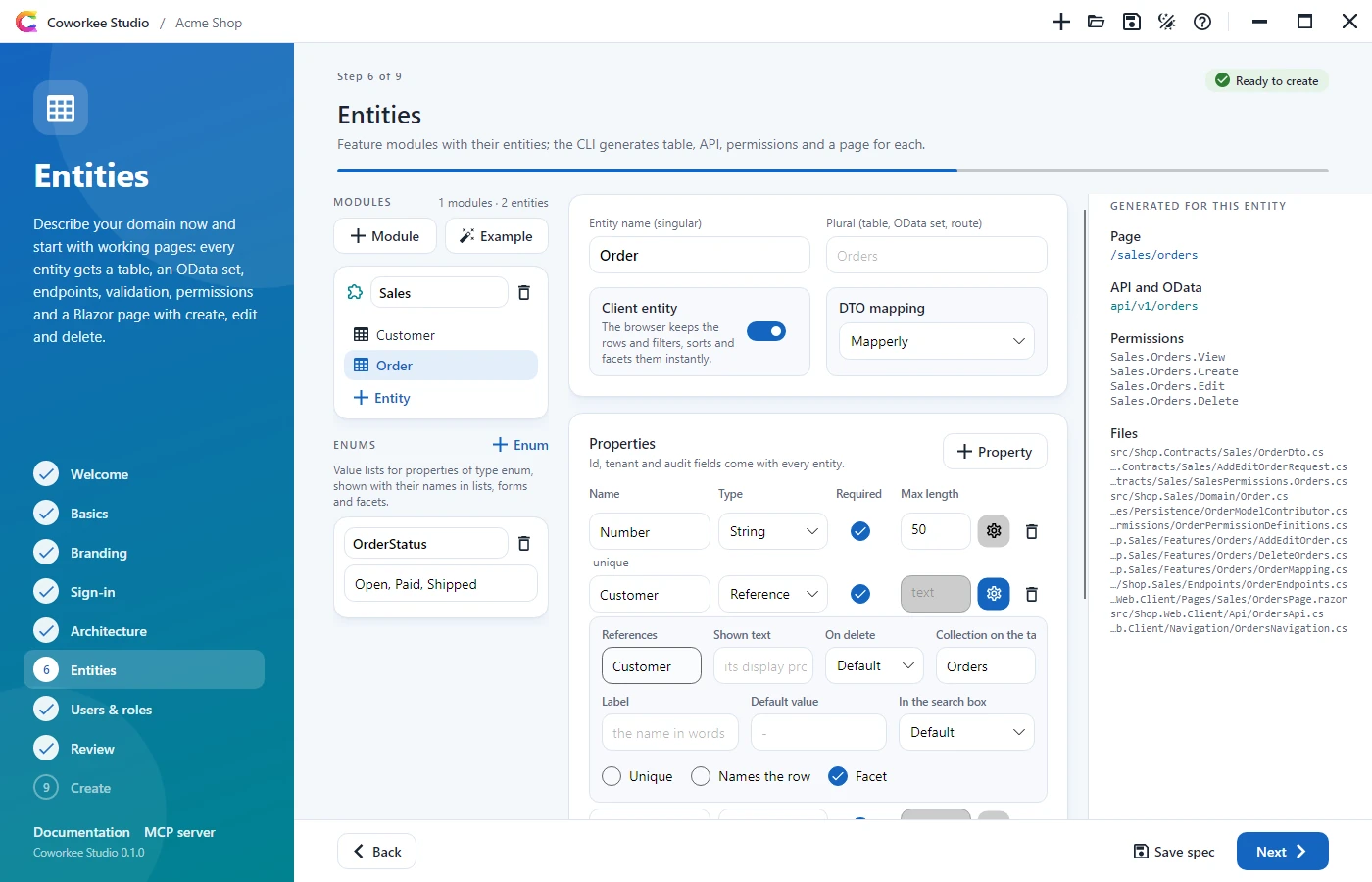
Feature modules with their entities: name, plural, client entity, DTO mapping and a grid of properties (name, type, required, maximum length). The cog of a property opens the rest: label, default value, search box, unique, display text and facet; for an enum its name, for a reference the target (Module.Entity, suggested from the designer), the shown text, the delete behaviour and the collection on the target; precision and scale for decimals and money. Below the modules, Enums holds the value lists. Problems are shown on the module, entity, property or enum they concern. The panel on the right shows what the CLI generates for the selected entity: page route, API route, permission names and files. Example adds a Sales module with customers and orders, a reference between them and an order status enum.
Users & roles
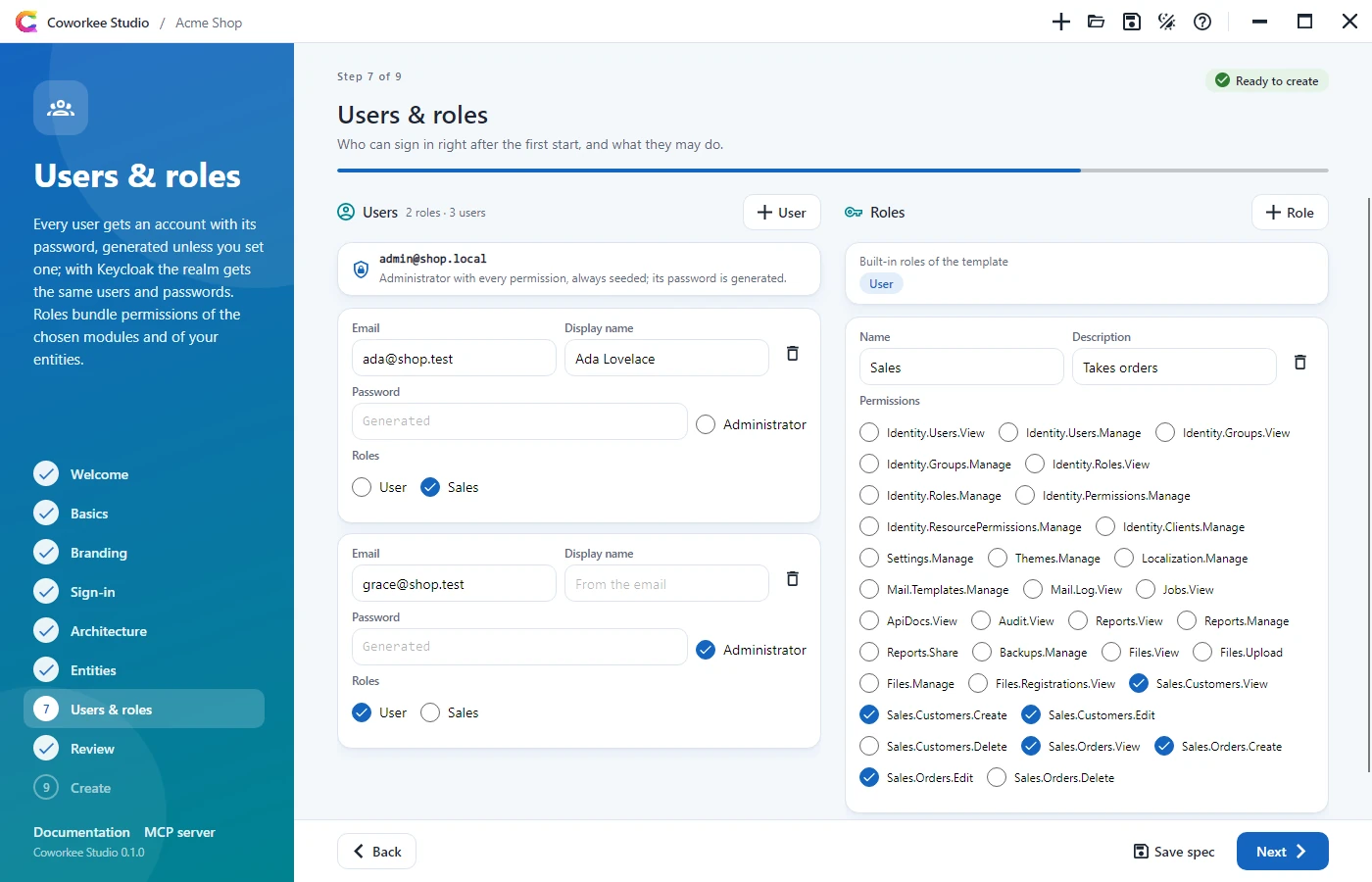
Development users and roles the app is seeded with. Each user has an email, a display name (default: from the email), an optional password (generated when empty), an administrator switch and check boxes for the roles; the administrator admin@<name>.local is always there. Roles have a name, a description and check boxes for the permissions the app will have: those of the chosen modules, of the samples and of your entities. With Keycloak the realm gets the same users with the same passwords.
Review
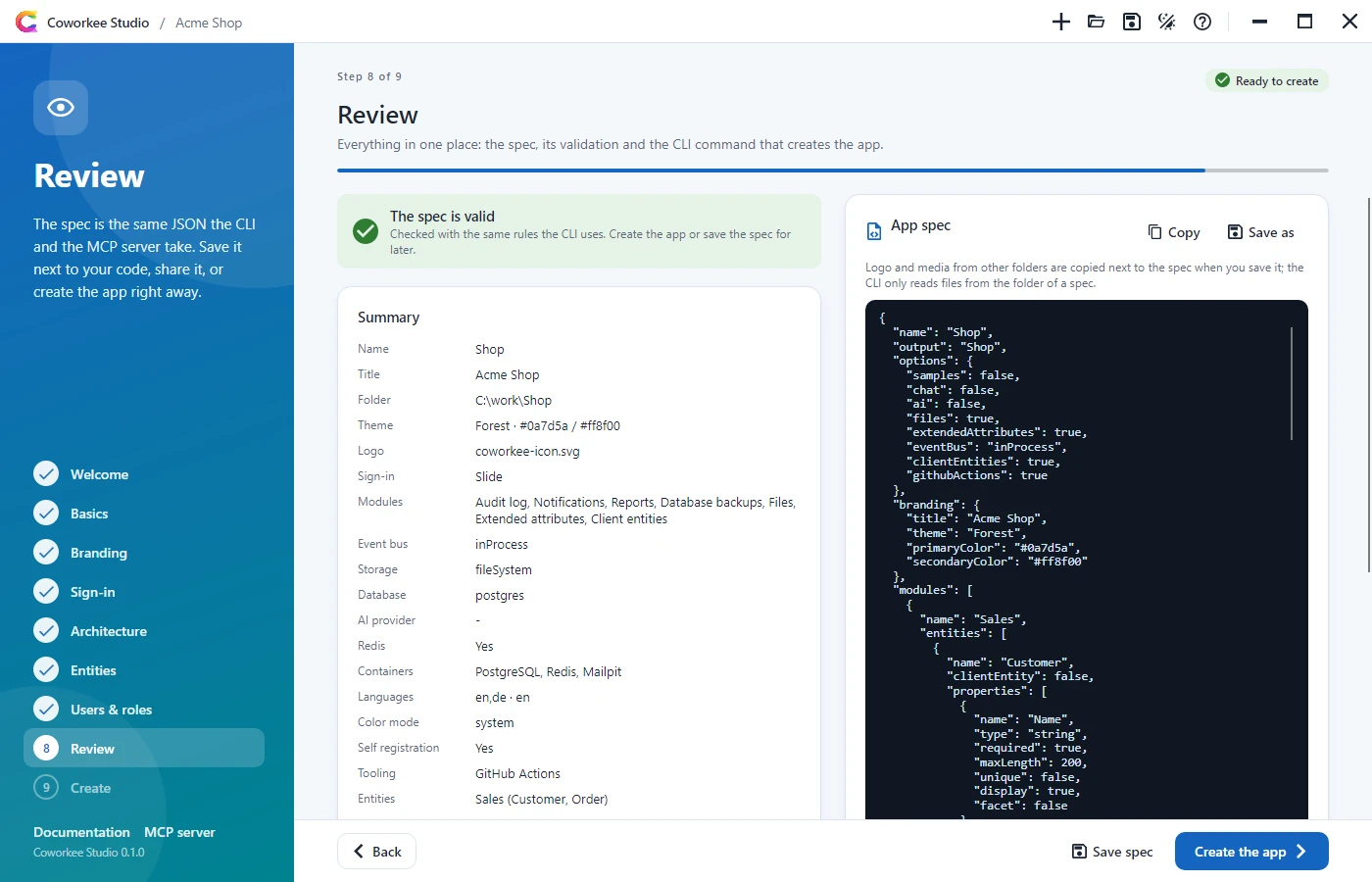
The summary (including database, AI provider, Redis, the containers, color mode, self registration and tooling), the validation with the rules of the CLI, the spec as JSON (copy or save it) and the equivalent command lines: coworkee new --spec with everything, and coworkee new with switches for the same app without entities. Logo and media from other folders are copied next to the spec when you save it, because the CLI reads files of a spec only from its folder.
Create
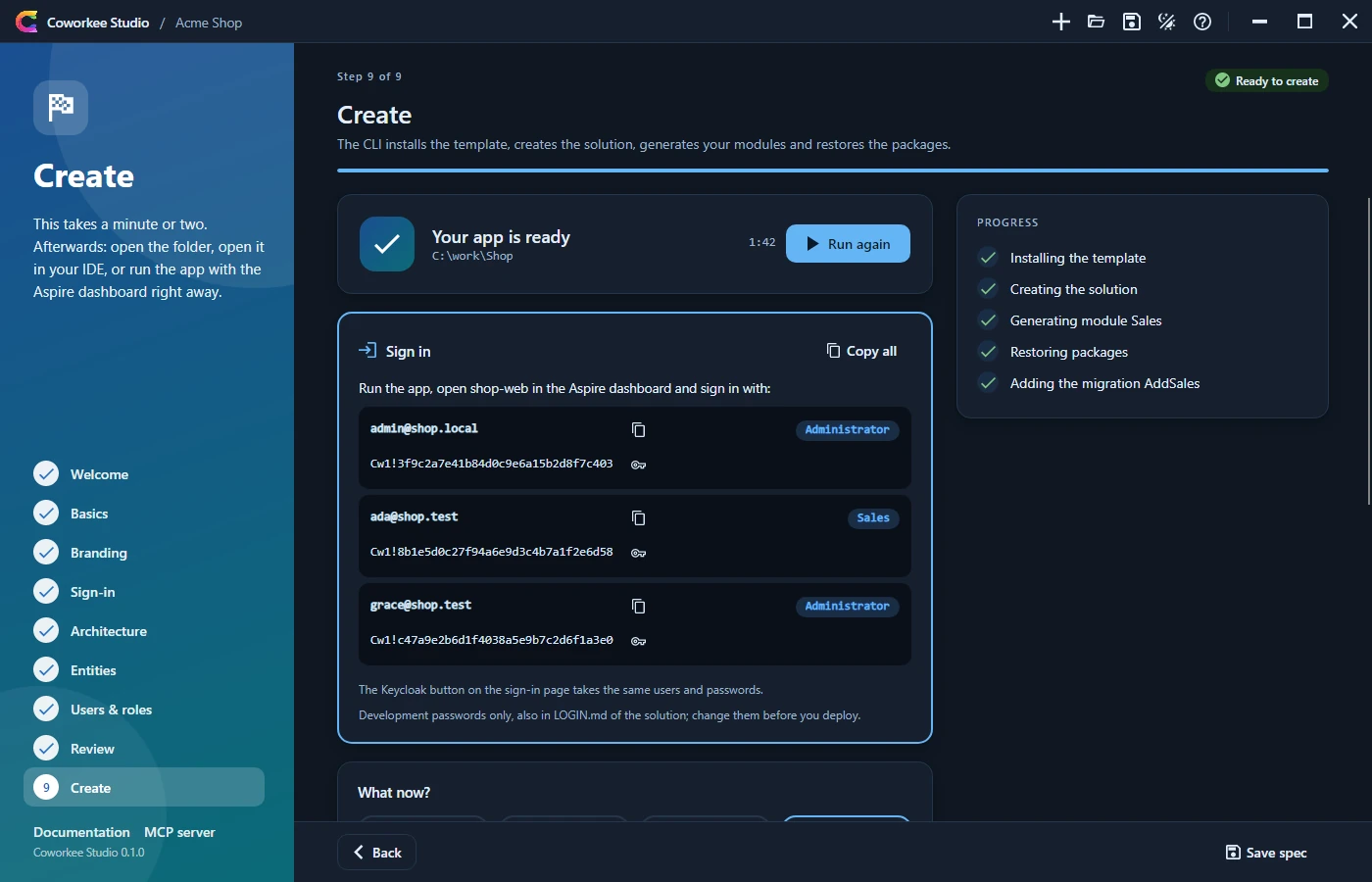
The Studio writes the spec, runs coworkee spec validate and coworkee new --spec, and shows each step of the CLI as it happens, with the full output when you want it. Output folder, logo and media go on the command line. Afterwards the Sign in card lists every user with password and roles, with copy buttons, and says whether Keycloak takes them too (they are also in LOGIN.md of the solution). Then: open the folder, open it in VS Code, Rider or Visual Studio, or run the app with coworkee run in a new terminal.
When the CLI is not installed, the Studio offers to run dotnet tool install -g Coworkee.Cli or to use a local CLI (coworkee.exe or Coworkee.Cli.dll).
Help and the MCP server
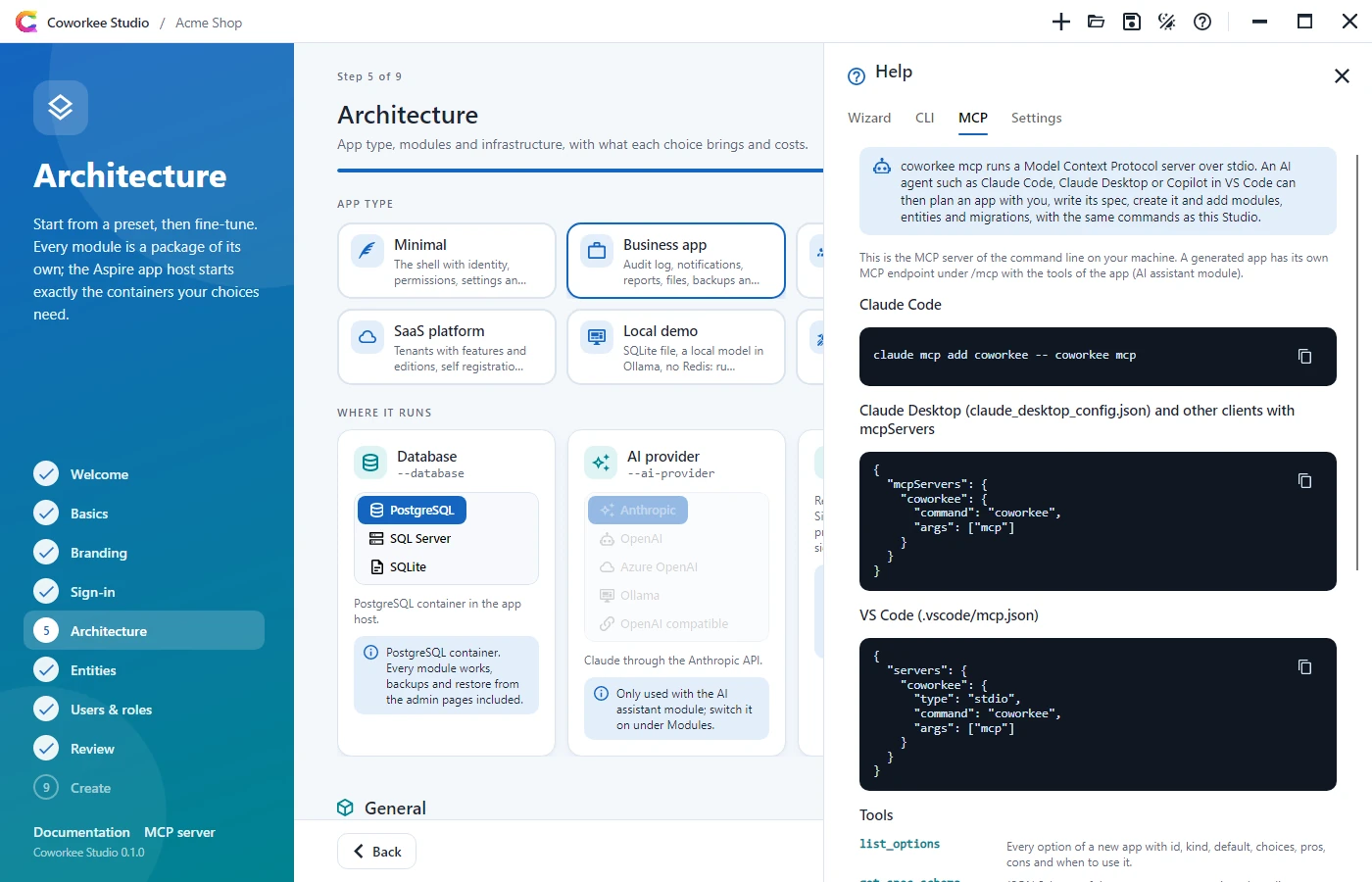
The help (F1 or the question mark) explains the wizard, the CLI commands and the MCP server: what coworkee mcp is, its tools, and the registration for Claude Code, Claude Desktop and VS Code with copy buttons.
Settings
The settings in the help drawer: language (system, English, German), color mode, the CLI to use (empty for the global tool, an executable or Coworkee.Cli.dll), a template source (.nupkg or folder, passed as --template-source) and a local package feed that the restore of the new app uses next to nuget.org. They are kept per user with the recent specs in the application data folder under Coworkee/Studio/settings.json.