Settings Overview
Every option on PowerAim’s Settings sidebar page, organized by card.
The Settings page has 9 cards. Some controls are also exposed on the relevant feature page (e.g. crosshair settings appear both here and on the Overlays card) — this page is the authoritative list.
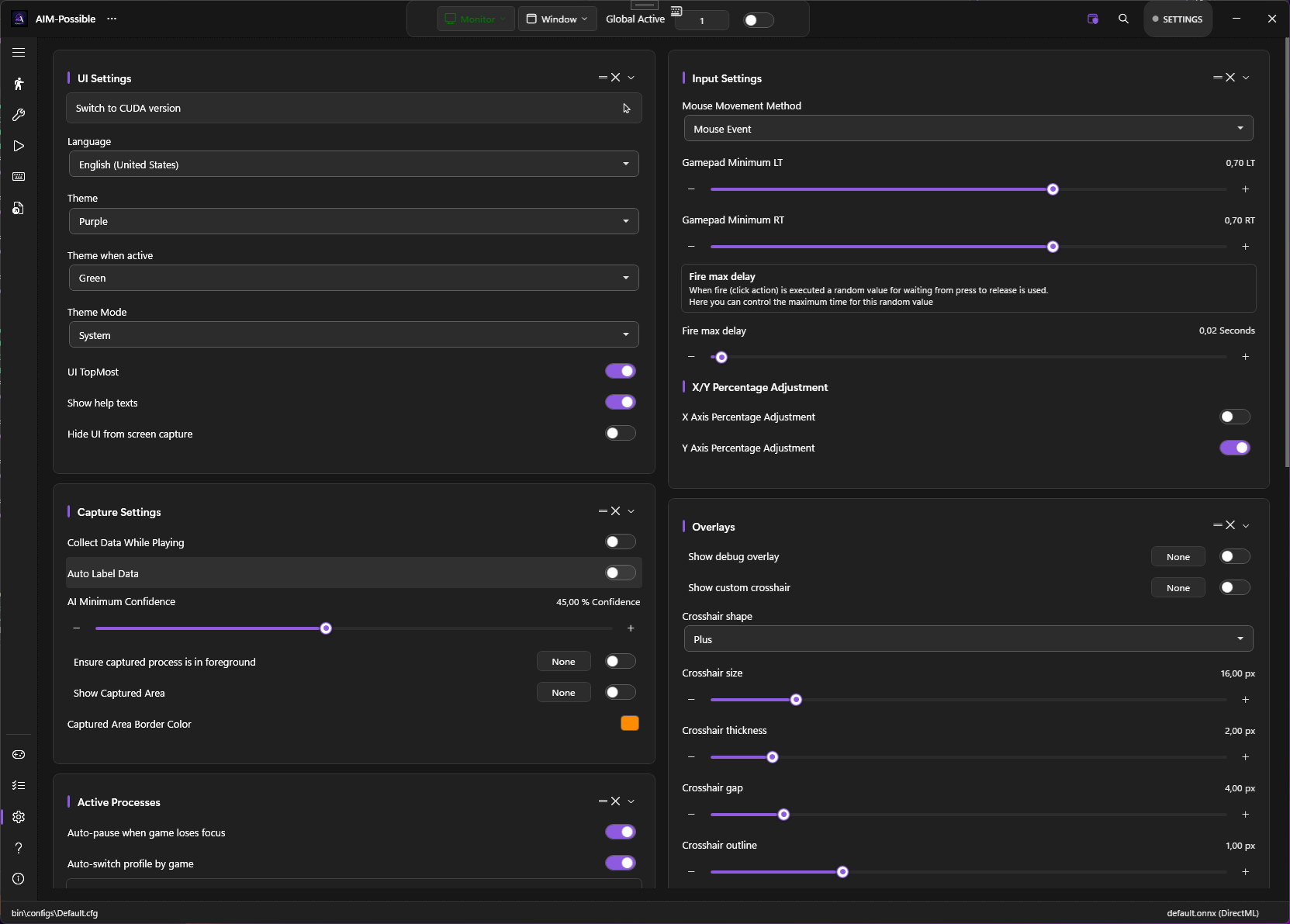
UI Settings
| Setting | What it does | Default |
|---|---|---|
| Switch to DirectML / CUDA | One-click switch between the DirectML and CUDA release builds | — |
| Language | UI language. 9 options: en, de, es, fr, it, ru, tr, uk, zh | System |
| Accent color | Free color picker for the UI accent while idle (Global Active off) | Purple |
| Accent color when active | A separate accent used while Global Active is on | Green |
| Theme Mode | Light / Dark / System-follow | System |
| UI Top Most | Keep PowerAim window above other windows | On |
| Show Help Texts | Show inline tooltips and help labels | On |
| Show toggle notifications | When a toggle is flipped via its global keybind, briefly show an on-screen notice (e.g. “Aim Assist is now on”) | On |
| Hide UI from Capture | Use Win32 capture exclusion so OBS / NVIDIA ShadowPlay can’t see PowerAim’s window | On |
The old Theme / Theme when Active palette dropdowns have been replaced by free accent-color pickers. The 6 former palettes (Purple, Green, etc.) survive as quick-fill swatches inside the picker, so you can still pick them with one click — or choose any custom color. Light / Dark / System mode is unchanged.
In-app color picker
Everywhere PowerAim asks for a color — the two accent colors above, the FOV ring color, the captured-area border color, the detected-player box color, and the crosshair fill / outline colors — it now opens its own HSV color picker instead of the old Windows color dialog. The picker has a saturation/value spectrum, a hue slider, a hex input, and a row of quick-fill swatches.
Disabling Hide UI from Capture is irreversible during the session — PowerAim warns you and asks for confirmation. The default protects you from inadvertently broadcasting PowerAim during a stream.
Capture Settings
| Setting | What it does | Default |
|---|---|---|
| Collect Data While Playing | Saves FOV-cropped frames to bin\images\ during play (for training data) |
Off |
| Auto Label Data | Writes YOLO .txt label files alongside captured frames using the current model |
Off |
| AI Minimum Confidence | Drop detections below this confidence threshold (1–100%) | 45% |
| Ensure Capture Process Foreground | Pause AI loop unless the capture target is the foreground window | Off |
| Show Captured Area | Draw a border around the captured region | On |
| Captured Area Border Color | Color of that border | Accent |
Input Settings
| Setting | What it does | Default |
|---|---|---|
| Mouse Movement Method | MouseEvent / SendInput / LG HUB / Razer / ddxoft. See Mouse Input Methods. | MouseEvent |
| Gamepad Minimum LT | LT pull (0–1) below which the trigger is treated as released | 0.7 |
| Gamepad Minimum RT | RT pull (0–1) below which the trigger is treated as released | 0.7 |
| Fire Max Delay | Maximum seconds to wait after the fire impulse before considering it stuck. 0 = wait forever. | 0.1 |
| X-Axis Percentage Adjustment | Use percentage-based X offset (in addition to pixel offset) | Off |
| Y-Axis Percentage Adjustment | Same for Y | On |
Active Processes
The Auto-Pause and per-game profile-switching card. See Per-game Profiles.
| Setting | What it does | Default |
|---|---|---|
| Auto Pause on Focus Loss | Pause the AI loop while the foreground window is a recognised non-game (browser, terminal) | On |
| Auto Switch Profile | Triggers / mapping profiles with a MatchProcess pattern only activate while the foreground process matches |
On |
| Game Process Patterns | Comma-separated whitelist of process names that count as “games” | empty |
Overlays
See Crosshair Overlay and Debug Overlay.
| Setting | What it does | Default |
|---|---|---|
| Show Debug Overlay | Topmost diagnostic panel | Off |
| Show sent-input visualizer | Inside the debug overlay, show a live keyboard + mouse + controller diagram of the input PowerAim is sending. See Debug Overlay. | Off |
| Show Custom Crosshair | Topmost custom crosshair | Off |
| Crosshair Shape | Dot / Cross / Plus / Circle / CircleDot / T | Plus |
| Crosshair Size | 4–80 px | 16 |
| Crosshair Thickness | 1–10 px | 2 |
| Crosshair Gap | 0–30 px (Plus + Cross only) | 4 |
| Crosshair Outline | 0–6 px | 1 |
Stats
See Session Stats. Shows live FPS / inference time / detections / shots / frames / tactical actions / session duration. Includes:
- Reset Stats — clears session counters
- Adaptive Kalman Lead — auto-adapt the Kalman lead time to measured target velocity
HUD OCR
See OCR.
| Setting | What it does | Default |
|---|---|---|
| Enable HUD OCR | Master toggle | Off |
| OCR Interval | 100–5000 ms | 500 |
| Configure OCR Regions | Opens the per-region editor | — |
Replay Buffer
See Replay Buffer.
| Setting | What it does | Default |
|---|---|---|
| Record Rolling Buffer | Master toggle | Off |
| Buffer Length | 1–30 seconds | 3 |
| JPEG Quality | 10–100 | 70 |
| Save Replay Buffer | Flush to %LocalAppData%\PowerAim\replays\<timestamp>\ |
— |
| Clear Buffer | Drop everything | — |
AutoPlay Learning
See AutoPlay.
| Setting | What it does | Default |
|---|---|---|
| Record Playstyle | While on, samples your input state every SampleInterval ms |
Off |
| Apply Learned Bias | Bias AutoPlay’s selector toward the recorded preference | Off |
| Bias Strength | 0 (ignore) – 1 (dominate) | 0.5 |
| Sample Interval | 50–1000 ms | 150 |
| Save / Load / Clear Model | Persist or reset the JSON state | — |