Aim Assist
The core PowerAim feature: while the configured aim key is held, the mouse is nudged toward the nearest detected target inside the FOV circle.
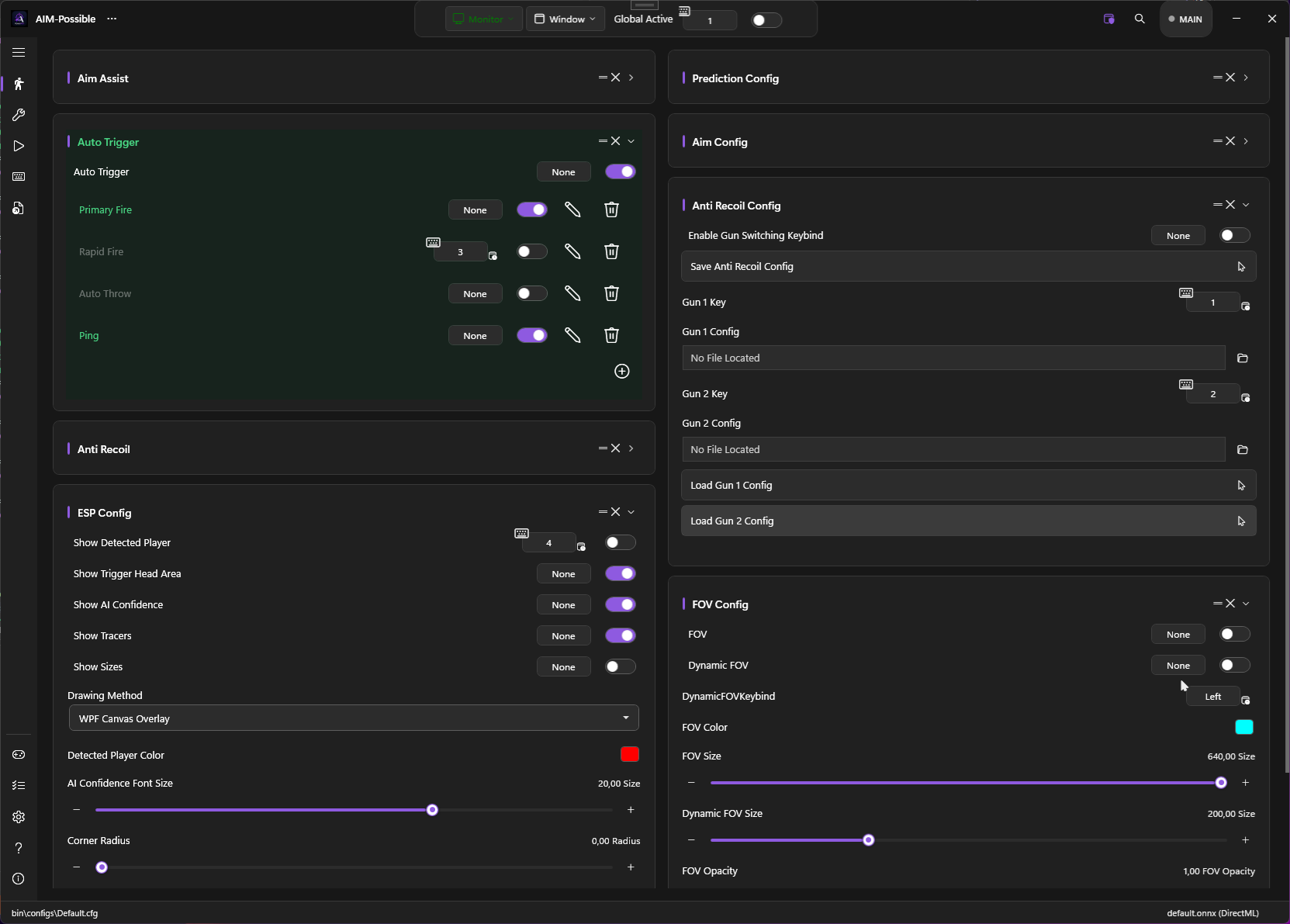
What it does
Each frame, PowerAim:
- Captures the screen region inside the FOV box
- Runs the loaded ONNX model
- Filters detections by minimum confidence + target classes
- Picks the “best” target via the Sticky-Aim selector
- Computes the next mouse position using the configured movement path and prediction method
- Sends the delta via the configured mouse input method
If no aim key is held, steps 4–6 are skipped — PowerAim still draws ESP boxes / FOV ring but never moves the mouse.
How to enable
- Aim Tools → Aim Assist → toggle on
- Make sure Global Active (top-center of the window) is also on — Global Active is the master kill switch.
- Hold any of the configured Aim Key Bindings in-game.
The aim key chip supports multiple keys. By default it lists Right Mouse Button + Left Alt — either one arms the aim.
Aim assist can be paused automatically by the HUD state. If you set up OCR aim-disengage rules, assist is held off while a HUD region matches — e.g. while scoped or holding a knife — even though the aim key is held.
Configuration options
All sliders live on the AimConfig card (right column of Aim Tools).
Movement & path
| Setting | What it does | Default |
|---|---|---|
| Aiming Boundaries Alignment | Where the FOV ring is anchored on the screen — Center / Top / Bottom | Center |
| Movement Path | Curve used between current and target position — Bezier / Lerp / Exponential / Adaptive / Perlin | Bezier |
| Mouse Sensitivity | Multiplier on each frame’s mouse delta. 0.90 default; 0.10 is the slowest, 1.00 the fastest. | 0.90 |
| Mouse Jitter | Pixel radius for random jitter added to the path. 0 = perfectly straight. | 6 |
| EMA Smoothening | Exponential moving average weight applied to the target position. Higher = smoother but more lag. | 0.5 |
The five Movement Paths:
- Bezier — cubic Bezier with 1/3 and 2/3 control points. Original Aimmy curve.
- Lerp — straight linear interpolation. Fastest, no easing.
- Exponential — slow start, fast finish.
- Adaptive — Lerp for short distances, Bezier for longer ones (threshold 100 px).
- PerlinNoise — Lerp with Perlin-noise jitter perpendicular to the direction. Most “organic” feel.
Offsets
PowerAim aims at the head by default. The four offset sliders let you bias the aim point:
| Setting | What it does |
|---|---|
| Y Offset | Vertical pixel offset (positive = down, negative = up) |
| Y Offset Percentage | Vertical offset as a percentage of the bounding box (90% = forehead) |
| X Offset | Horizontal pixel offset |
| X Offset Percentage | Horizontal offset as a percentage of the bounding box (50% = center) |
The percentage and pixel offsets are independent — enable them with the toggles on the Settings page (X-Axis Percentage Adjustment / Y-Axis Percentage Adjustment).
Predictions
Toggle Predictions to enable lead-time on moving targets. Method is chosen on the PredictionConfig card:
- Kalman Filter (default) — custom 2D Kalman with velocity state. Adaptive lead time available via the Adaptive Kalman Lead toggle in Stats.
- Shall0e’s Prediction — velocity-based linear lead. Fixed by Shall0e in the fork; the upstream version was broken.
- wisethef0x’s EMA Prediction — EMA-weighted velocity lead.
Sticky Aim
Sticky Aim holds your current target between frames based on a composite score (distance + confidence + size + lock bonus), and only switches when a clearly better candidate appears. This eliminates flicker between two overlapping detections.
| Setting | What it does | Default |
|---|---|---|
| Sticky Aim Enabled | Master toggle | On |
| Sticky Aim Threshold | Pixel radius within which distance counts toward the score. Outside this radius, distance contributes 0. | 80 px |
| Sticky Aim Max Lock Score | Upper bound on the accumulated lock-score. Higher = harder to break the lock. | 100 |
Use controller for aim
The Use Controller for Aim toggle (on the AimConfig card) makes the aim pipeline drive the virtual right stick instead of sending mouse motion. This is the right setting if you’re on a game that ignores mouse input (consoles, anti-cheat-locked titles that accept gamepad only).
The toggle is greyed out until ViGEm is set up — see Gamepad Aim.
FOV
The FOV circle defines the screen region PowerAim looks at. See FOV Overlay for the dedicated page; here’s the short version:
| Setting | What it does |
|---|---|
| FOV Size | Diameter in pixels. Smaller = tighter aim, fewer false positives, faster inference. |
| Dynamic FOV | Optional — switches to the Dynamic FOV Size while the Dynamic FOV keybind is held. |
| Dynamic FOV Size | Diameter while the keybind is held. Usually smaller than the base FOV (precise aiming). |
Tips
- Start with low sensitivity. Begin at
MouseSensitivity = 0.50and ramp up. It’s easier to add aim power than to subtract overshooting. - EMA Smoothening is your friend on noisy models. Models trained on too few frames flicker the detection box; EMA smooths it out.
- Use the Calibration Wizard to set sensitivity automatically. It measures the relation between PowerAim’s deltas and your in-game cursor — see Calibration Wizard.
- Use Sticky Aim’s lock score to control how “loyal” the aim is. Lower lock score = more reactive to new targets; higher = harder to peel off the current one.
- Movement path matters less than people think. Bezier vs. Lerp is mostly feel — pick what looks natural.
Troubleshooting
- No detections in-game? Open ESPConfig → Show Detected Player and verify the boxes appear. If they don’t, the model doesn’t recognize what’s on screen — try a different model.
- Aim feels jittery? Raise EMA Smoothening, lower Mouse Jitter to 0, switch the movement path to Bezier.
- Aim is too slow? Lower EMA Smoothening, raise Mouse Sensitivity, switch movement path to Lerp.
- Aim drags / lags? Check the Low FPS troubleshooting — the AI loop might be running below 30 FPS.