Session Stats
A live metrics panel on the Settings page showing how PowerAim is performing during your session. It’s the non-overlay version of the Debug Overlay.
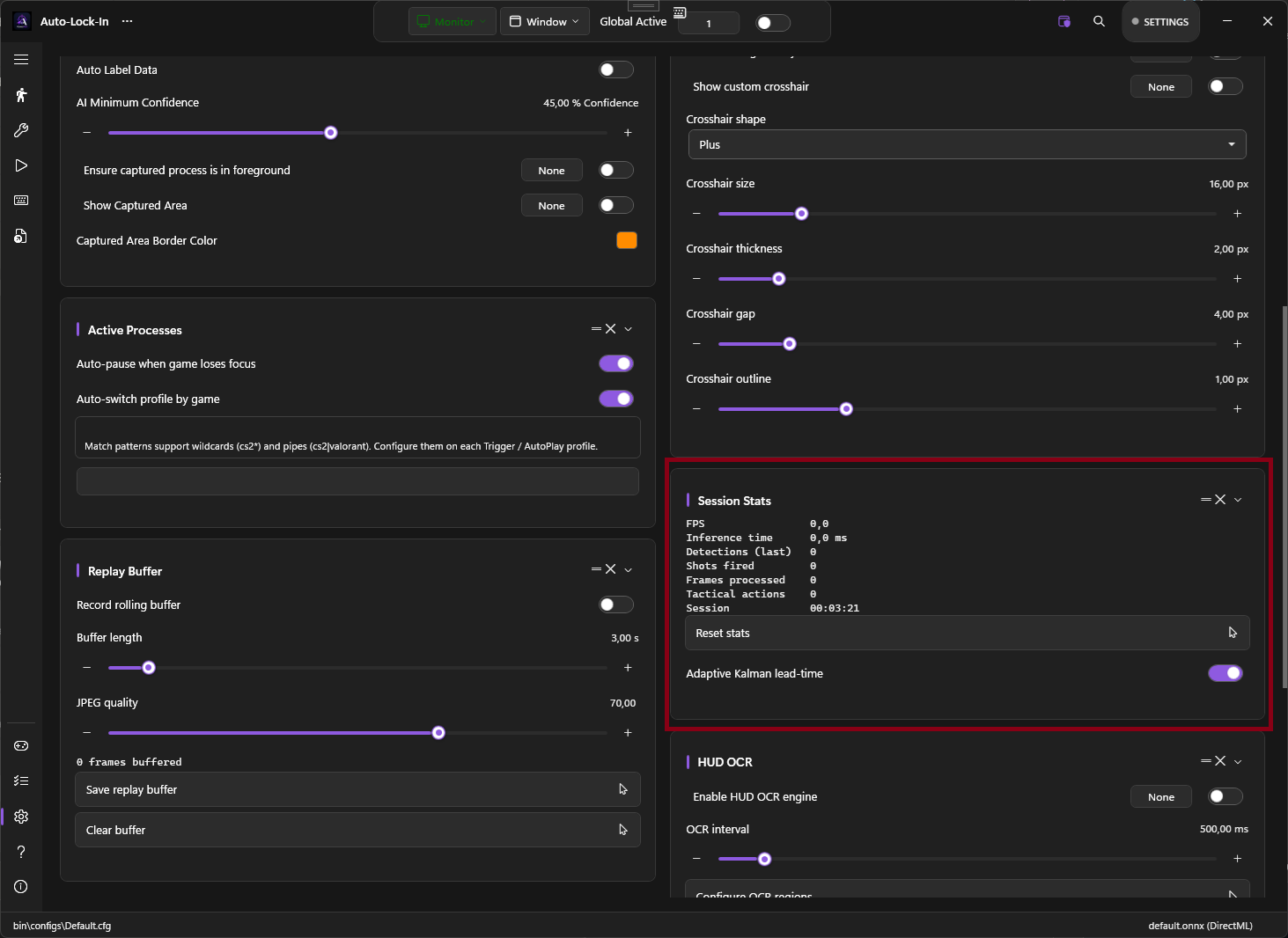
What it shows
| Metric | Meaning |
|---|---|
| FPS | Instantaneous AI-loop frames per second |
| Inference Time | Most-recent ONNX forward-pass time (ms) |
| Detections (last) | Detection box count on the most recent frame |
| Shots Fired | Triggers fired this session |
| Frames Processed | Running total |
| Tactical Actions | AutoPlay actions taken this session |
| Session | hh:mm:ss since reset |
A Reset Stats button clears the session counters back to zero. The session timer restarts.
Adaptive Kalman Lead
Below the stats is an Adaptive Kalman Lead toggle. When on, the Kalman filter’s lead time auto-adapts to the measured target velocity — lower lead at low speeds (avoids overshooting), higher lead at high speeds (compensates for delay).
When off, the lead time is a fixed parameter.
Tips
- Use FPS to validate model size. If you’ve just switched models or sizes, glance at the FPS number — if it dropped below 60 you’ll feel it as input lag.
- Watch Shots Fired during practice. The counter is a quick way to see how many fires your triggers attempted in a 10-minute warmup session.
- Reset between sessions. The default behavior is to keep counting; if you want clean stats per match, hit Reset before queueing.
How it relates to the Debug Overlay
The Debug Overlay shows the same numbers but on top of every other window — useful in-game. The Session Stats card is the in-app version — useful while configuring PowerAim.