OCR HUD Reader
A periodic Tesseract-based OCR engine that reads named rectangular regions of your screen and exposes the recognized text. Use it to track health, ammo, score, or any other on-screen number — and feed the values into triggers or AutoPlay.
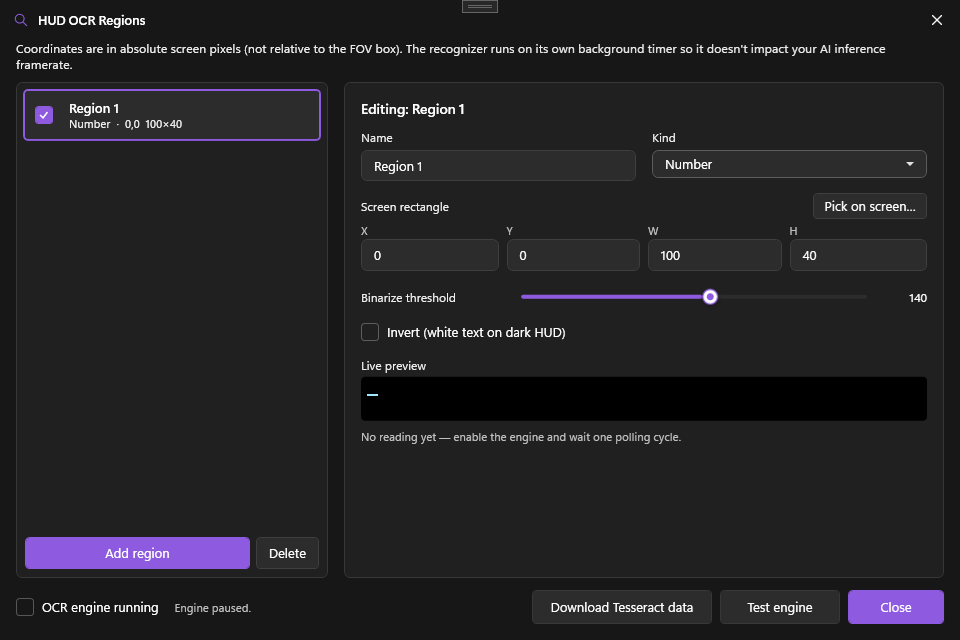
What it does
On each tick (default every 500 ms), the OCR engine:
- Captures each enabled region as a small Bitmap
- Optionally binarizes it (threshold + invert)
- Runs Tesseract 5.2 with English-language data
- Post-processes per region kind (Number = digits only, Health = number + slash, Text = free-form)
- Stores the result in
OcrService.Latest
Other PowerAim subsystems (AutoPlay, triggers) can read those values; you can also see them live in the dialog.
How to enable
- Settings → HUD OCR → Enable HUD OCR
- Click Configure OCR Regions
- In the dialog, click + Add Region
- Draw the region directly on the captured frame (click-and-drag)
- Pick the Kind: Text / Number / Health
- Optionally enable Invert and adjust Threshold for clearer OCR
- Hit Test to OCR the region once and see the result
Tessdata download
Tesseract needs an eng.traineddata language model. On first launch the dialog shows a Download Tessdata button that grabs it into %LocalAppData%\PowerAim\tessdata\. If you’d rather supply your own, point the Tessdata Path field on the Settings card to your folder.
Configuration options
Settings card
| Setting | What it does | Default |
|---|---|---|
| Enable HUD OCR | Master toggle | Off |
| OCR Interval | Polling interval in ms (100–5000) | 500 |
| Tessdata Path | Override the data folder | empty (= default) |
Per-region
| Setting | What it does |
|---|---|
| Name | Free text — used by consumers to look up the value |
| X / Y / Width / Height | Pixel rectangle on the captured frame |
| Enabled | Per-region toggle (lets you keep regions defined but inactive) |
| Kind | Text / Number / Health — drives post-processing |
| Invert | Invert the binarized image (for white-on-dark HUDs) |
| Threshold | Binarization cutoff (0–255). 140 default. |
Tips
- Keep regions tight. 100×40 around the ammo number is way faster than scanning a 400×400 corner.
- Binarize when the font is anti-aliased. Tesseract works best on clean black-on-white. Try the Invert toggle if the font is light on dark.
- 500 ms is fine for health. Don’t drop the interval below 200 ms unless you really need it — OCR is CPU-bound and adds latency.
- Health = “75/100”. The Health kind strips spaces but preserves the slash so consumers can split it.
Aim-disengage rules
OCR can also pause aim assist while a HUD region matches — for example, stop aiming while you’re scoped, holding a knife, or in a menu. This avoids fighting the player during moments where assist is unwanted.
Open it from the Configure aim-disengage… button on the HUD OCR card. Each rule has:
| Field | What it does |
|---|---|
| Region | Which OCR region to watch |
| Comparison + value | Same operator set as trigger OCR conditions — e.g. contains scoped, or HP less than 20 |
| Match Process | Optional process pattern to scope the rule to one game |
| Enabled | Per-rule toggle |
While any enabled rule matches, Aim Assist is held off until the rule stops matching.
Like trigger conditions, aim-disengage rules are only evaluated while the OCR engine is on. If OCR is off, no rule pauses aim.
Use cases
- Auto-reload when ammo is low. A trigger reads OCR ammo, fires
Rwhen ammo < 5. - Gate triggers on the HUD. Use OCR trigger conditions so a trigger only fires while ammo or health is in range.
- Pause aim while scoped or knifing. An aim-disengage rule on a “weapon” region keeps assist from interfering during melee or aim-down-sights.
- AutoPlay aggression. AutoPlay knows when health is low and biases toward retreat actions.
- Stream overlay. Pipe OCR values out to your stream without OBS plugins.
Troubleshooting
- OCR returns garbage — sharper image needed: tighten the region, bump threshold, try Invert.
- No
tessdatafound — verify the Tessdata Path on the Settings card points at a folder containingeng.traineddata. - OCR seems off — confirm the region is correct on the live preview in the dialog. The capture source must include your HUD.
- High CPU — raise OCR Interval or disable the more expensive regions.
- Tessdata download failed — drop
eng.traineddatamanually into%LocalAppData%\PowerAim\tessdata\from the official Tesseract releases.