Detection Masks
Rectangular regions of the captured frame that the inference pipeline ignores. Use them to blank out HUD elements (ammo counters, minimaps, killfeed) that some models hallucinate enemies into.
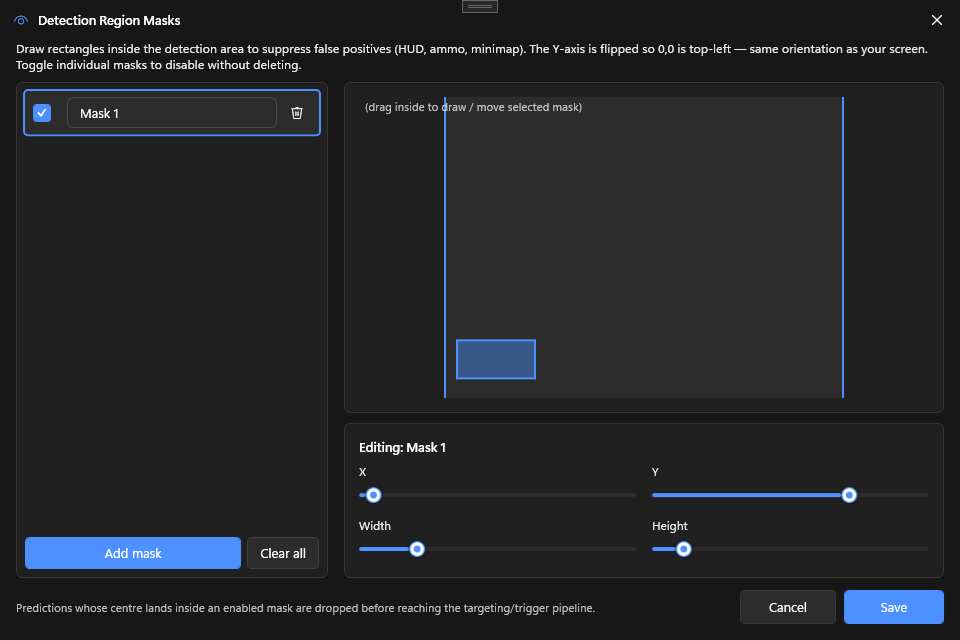
What it does
Each mask is a rectangle in normalized image space (0–1 in both axes). Before detection runs, PowerAim zeros out the pixels inside every enabled mask. The model sees no signal there and cannot fire a false-positive into a mask.
Multiple masks can be combined — useful for games with HUDs scattered across multiple corners.
How to enable
- Aim Tools → PredictionConfig → Detection Masks
- The dialog opens with a live capture preview
- Drag on the preview to create a new mask, or click + Add Mask
- Select a mask in the list to edit it
- Drag the rectangle on the preview to move it, or use the sliders below to set exact coordinates
- Per-mask checkboxes let you toggle individual masks without deleting them
- Click Save when done — Cancel discards changes
The Masking master toggle on the Aim Assist card (or via hotkey) enables or disables all masks at once.
When to use
- Bottom-center killfeed in CS2 / Valorant — these often contain player portraits that older models latch onto
- Minimap corner in any game — abstract shapes get detected as low-confidence players
- Ammo / weapon panel — bright icons and numbers
- Crosshair art — if the in-game crosshair somehow matches a class in your model
Tips
- Start with the killfeed. It’s by far the most common false-positive source.
- Use the Test toggle. Toggle masks off / on while looking at the Debug Overlay — you should see the false positives disappear.
- Masks are per-config. Save your config after editing masks; loading another config replaces them.
- Masks affect performance only marginally. The mask is applied as a single memset before inference.
Troubleshooting
- Mask appears in the wrong place — coordinates are normalized. If you change FOV size or image size, masks scale with the FOV but stay in their normalized position.
- Mask doesn’t seem to do anything — confirm the Masking master toggle is on. The dialog edits a working copy; you must click Save to commit.
- Detection still fires into the masked area — increase the mask’s size a little; YOLO inference involves anchor boxes that can extend slightly outside the activation region.