Using Models
How to load, switch, and benchmark models inside PowerAim.
The Models tab
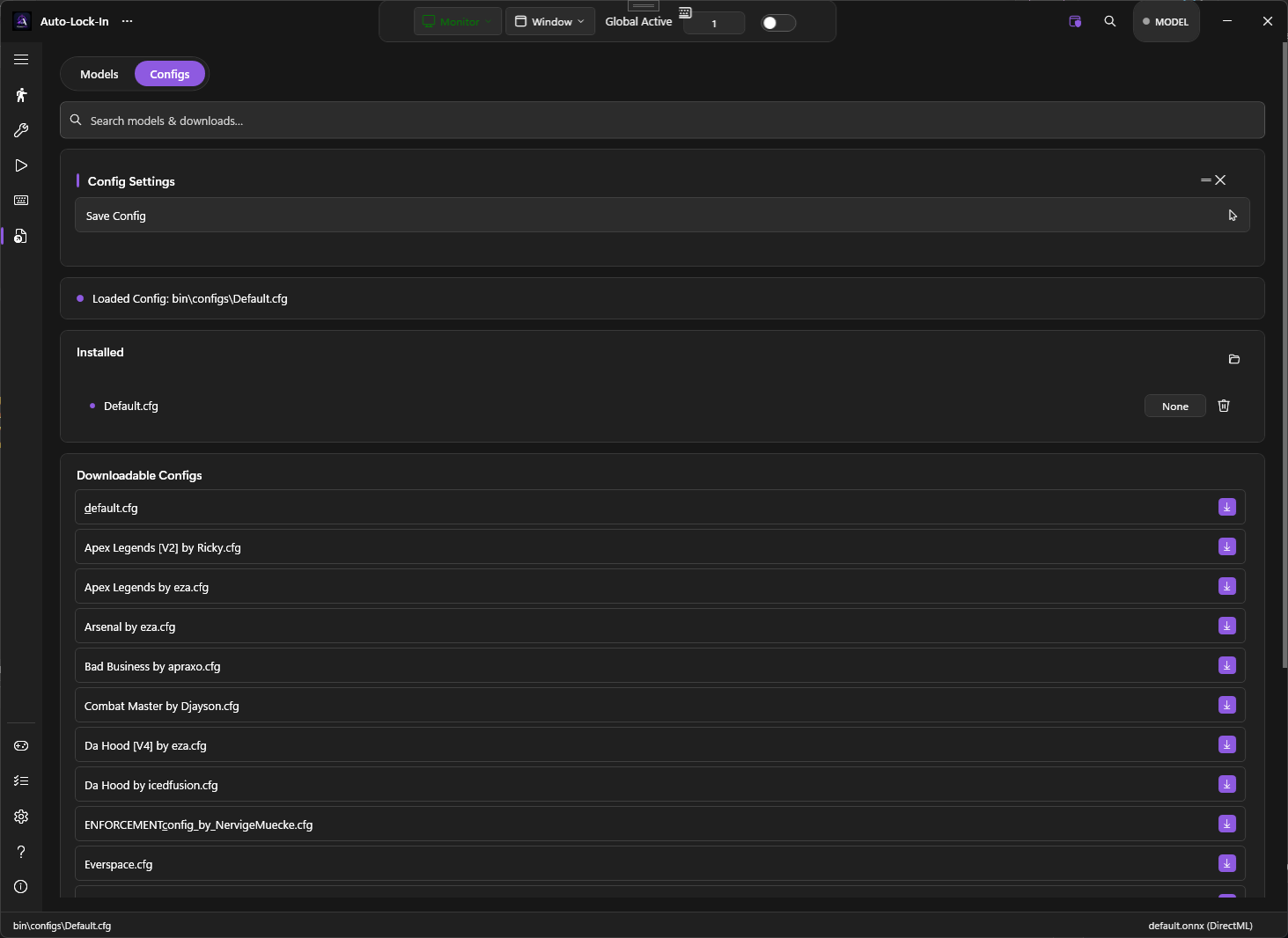
Models & Configs in the sidebar opens a two-column layout:
- Left — local models (currently in
bin\models\) - Right — downloadable models (fetched from the GitHub stores)
A segmented switch at the top toggles between Models and Configs. Configs are saved .cfg presets — same store, separate folder.
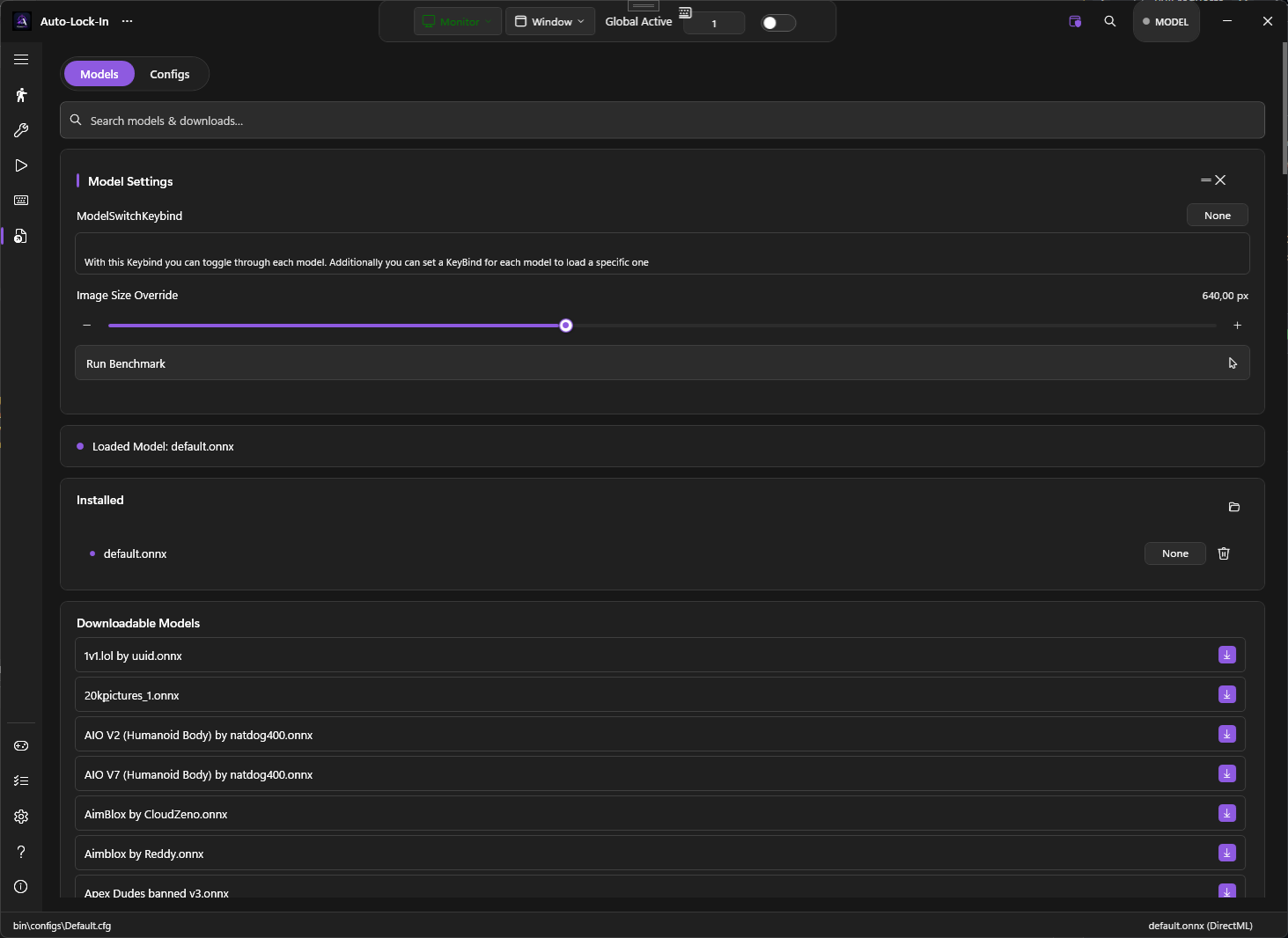
The same segmented switch flips the view to Configs — saved .cfg presets pulled from the same stores into a separate folder.
Loading a model
Click any local model. PowerAim:
- Probes the model’s input shape (fixed or dynamic axis)
- Sets
SliderSettings.ImageSizeaccordingly - Reads class names from metadata
- Starts the AI loop
The status bar at the bottom of the window shows the loaded model name. The Aim Tools page becomes interactive (it was hidden when no model was loaded).
Switching models with a keybind
You can bind a Model Switch Keybind that cycles through local models without alt-tabbing to PowerAim. Find it on Aim Tools → Model Settings → Model Switch Keybind.
The Downloadable Models store
The right column shows community models pulled from two GitHub repos:
- fgilde/AI-Ming (this fork) —
models/directory - Babyhamsta/Aimmy (upstream) —
models/directory
PowerAim merges the lists by filename and shows one row per unique name. Clicking download writes the file to your local bin\models\ and immediately offers to load it.
Image Size Override
Dynamic-shape ONNX models accept any input size (multiple of 32). The default is 640; supported strides are 160 / 256 / 320 / 416 / 512 / 640 (and larger for high-end GPUs).
Smaller = faster + lower quality; larger = slower + higher quality.
Aim Tools → Model Settings → Image Size Override slider sets the runtime size for dynamic models. Fixed-shape models ignore the slider and use their metadata size.
Performance Benchmark
Models & Configs → Models card → Run Benchmark measures the current model at every candidate resolution (320 / 416 / 512 / 640 / 800) and picks the largest size that sustains ≥60 FPS on your hardware.
The benchmark runs:
- 5 warm-up frames at each size (lets the GPU JIT warm up)
- 30 measurement frames per size
- Reports per-size FPS, latency, and GPU% in a results dialog
- Optionally applies the recommended size to
SliderSettings.ImageSize
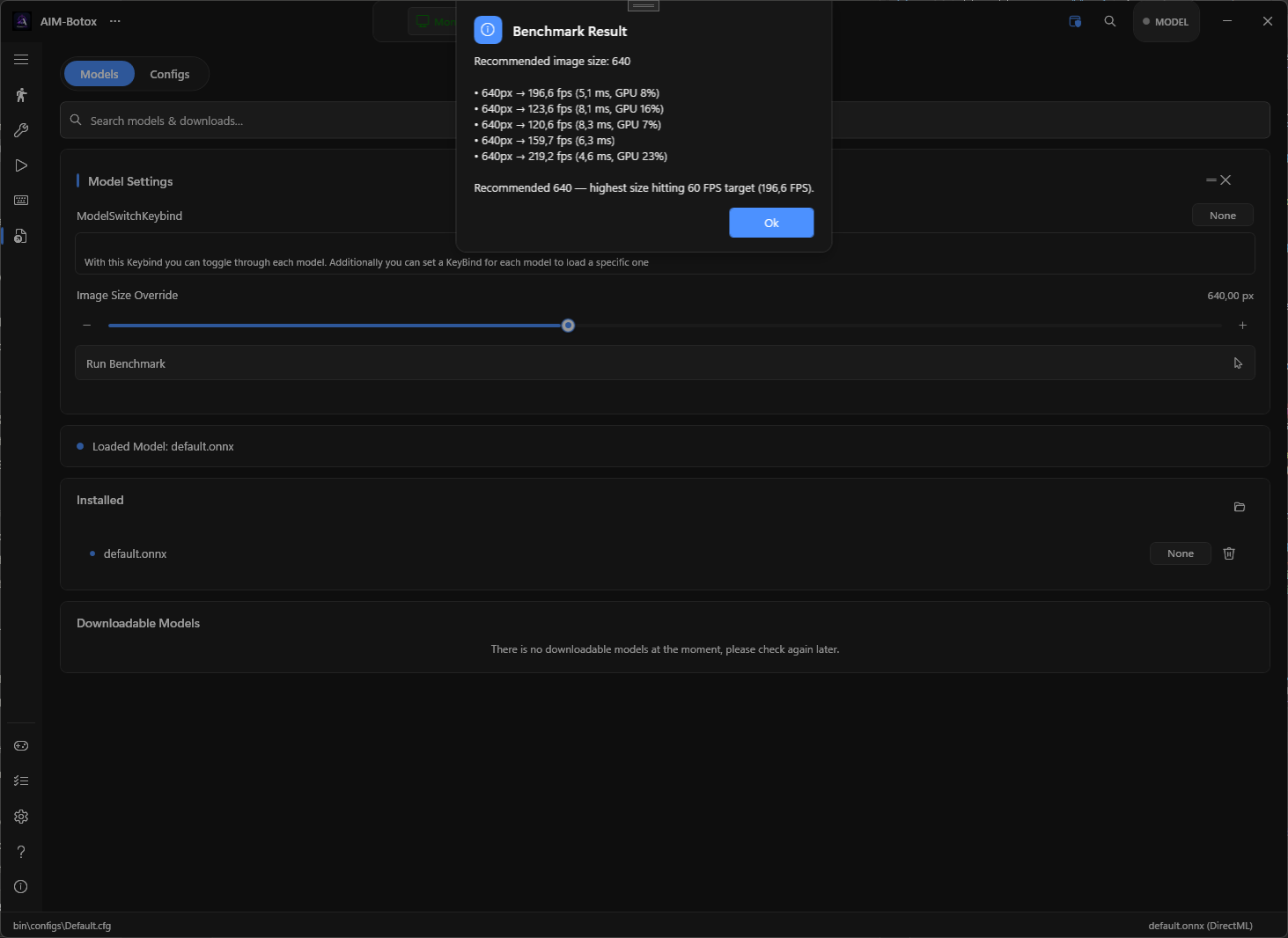
Re-run the benchmark whenever you switch hardware, change drivers, or load a markedly different model. It’s the most reliable way to find your sweet spot.
Max Inference FPS
Aim Tools → PredictionConfig → Max Inference FPS caps the AI loop. 0 = unlimited.
Use cases:
- Thermal management on laptops — cap at 60 FPS even if your GPU could push 200
- Energy saving — lower FPS = less battery
- Sync with the game’s frame rate — match the game’s max FPS so PowerAim doesn’t waste cycles
- Smooth performance — if the unlimited loop is noisy, capping gives a consistent feel
Target Classes
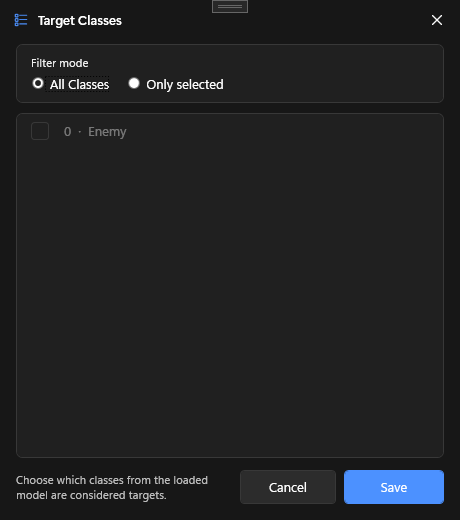
Multi-class models emit several class IDs per detection (e.g. 0 = Enemy, 1 = Teammate, 2 = Bot). The Target Classes dialog lets you pick which class IDs PowerAim should aim at.
Open it via Aim Tools → PredictionConfig → Target Classes.
| Mode | What it does |
|---|---|
| All classes | Aim at every detection regardless of class |
| Only selected | Aim only at the checked classes (e.g. just Enemy) |
The dialog reads class names from the model metadata. If your model has no names field, classes show as Class 0, Class 1, etc.
Tips
- Start with Universal models. They’re broadly trained — good baseline before trying game-specific ones.
- A bigger model isn’t always better. A 640-size model on a slow GPU may run at 25 FPS, whereas a 320-size model runs at 90 FPS and feels much more responsive — the smaller model’s latency dominates.
- Re-run the benchmark after model changes. Different YOLOv8 variants have different layer counts.
- Class filtering reduces false fires. Filter out teammates if your model can distinguish them.
Troubleshooting
- “Model failed to load” — see Model Won’t Load
- Inference is very slow — see Low FPS
- Wrong classes detected — check the Target Classes dialog; you might be picking up teammates