AutoPlay
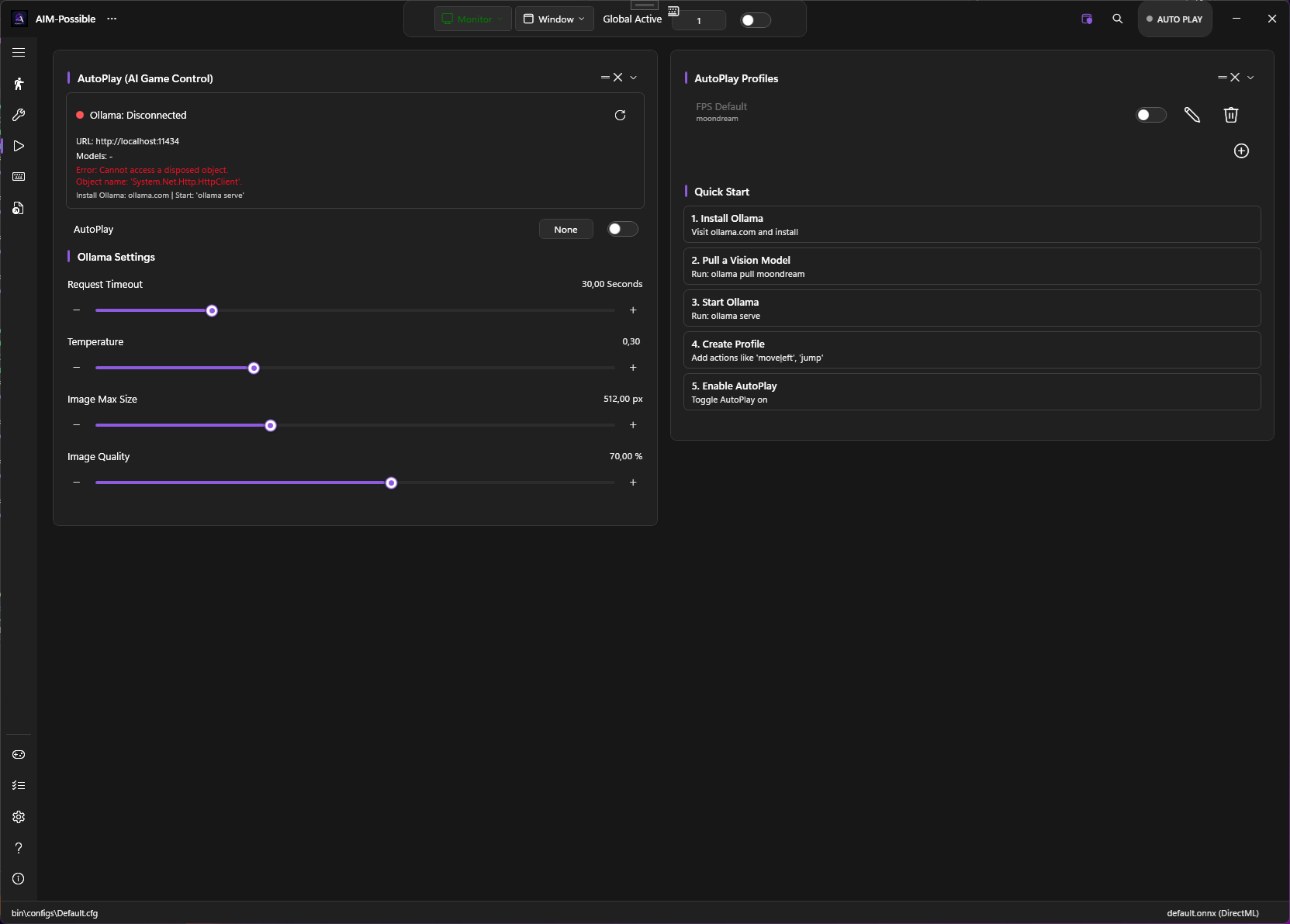
Let a local vision-capable LLM (Ollama) play the game for you. PowerAim captures the screen, sends it to the LLM with a context prompt + list of available actions, then executes whichever action the model picks.
What it does
Every DecisionInterval seconds while AutoPlay is on:
- PowerAim screenshots the current frame
- Compresses it (JPEG, configurable max size + quality)
- Sends it to Ollama at
http://localhost:11434along with the active profile’sGameContextprompt and action list - The LLM returns the name of one action
- PowerAim sends the corresponding input(s)
Actions can be:
- Instant — press + release once (jumps, reloads)
- Continuous — hold while AutoPlay still wants this action (movement)
- Modifier — held while another action is concurrent (aim-down-sights)
- Toggle — flip a latched key (crouch toggle)
Prerequisites
- Install Ollama
- Pull a vision model:
ollama pull moondreamOther vision models:
llava:7b,qwen2.5-vl:7b.moondreamis the fastest;llavais balanced;qwen2.5-vlis highest quality. - Make sure Ollama is running (it auto-starts on Windows after install)
How to enable
- AutoPlay in the sidebar
- The Ollama Status Indicator at the top should show green (“Connected”). If red, see Troubleshooting below.
- Toggle AutoPlay on
- Pick or create a profile (see below)
Profiles
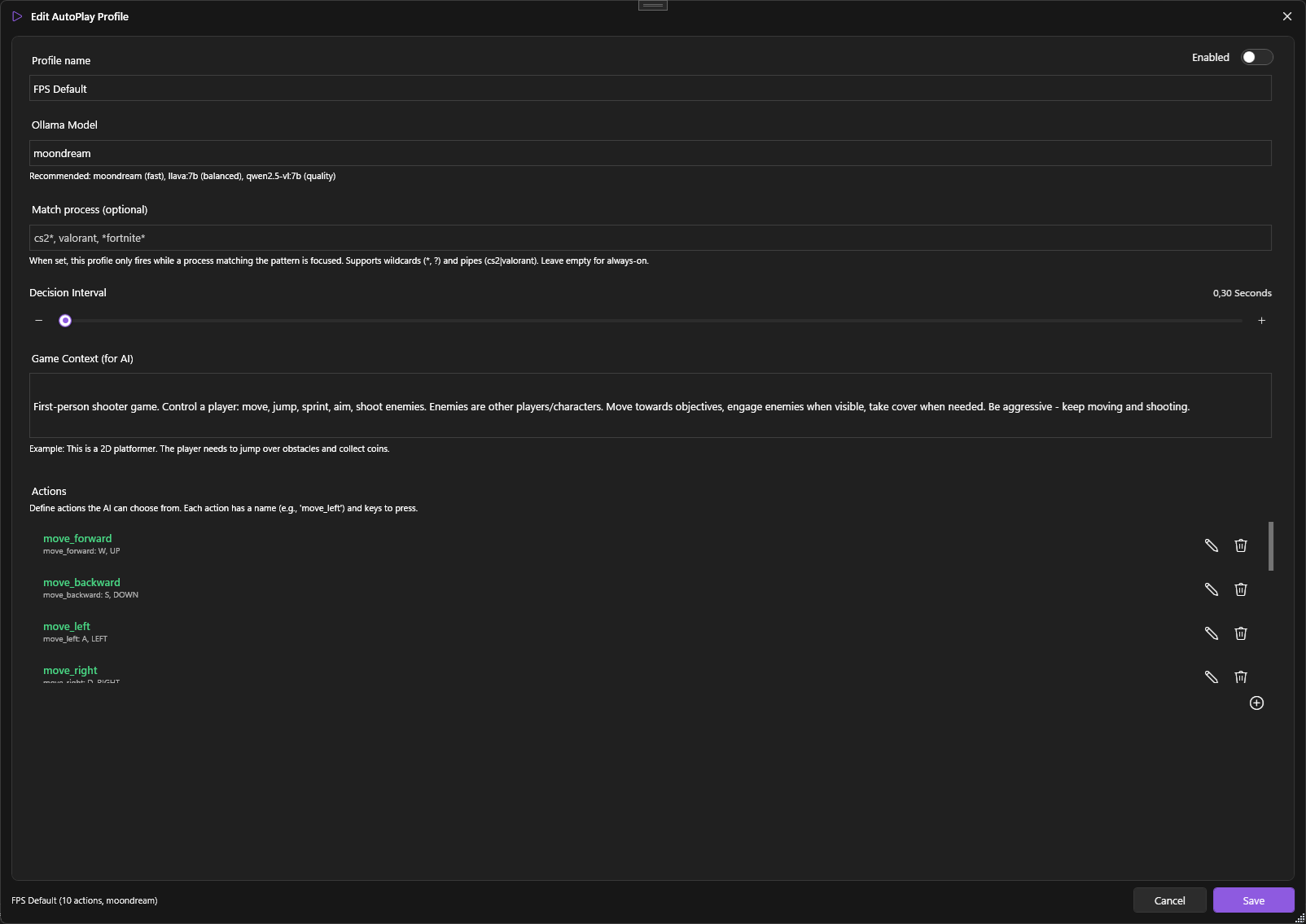
Each profile holds:
| Field | What it does |
|---|---|
| Name | Free text |
| Enabled | Per-profile toggle (only enabled profiles are candidates for activation) |
| OllamaModel | Which Ollama model to call (e.g. moondream) |
| DecisionInterval | Min seconds between decisions (0.3–2.0 typical) |
| GameContext | Prompt describing the game and what the LLM should do |
| MatchProcess | Optional process pattern — limits this profile to a specific game |
| Actions | The list of action names + descriptions + key bindings |
PowerAim ships a “FPS Default” profile with 10 actions covering WASD movement, jump, shoot, aim, reload, crouch, sprint. Use it as a template.
Game context prompt
The GameContext is the most important field. It tells the LLM:
- What kind of game is on screen
- Who the player is
- What the goal is
- General strategy advice
Example for an FPS:
First-person shooter game. Control a player: move, jump, sprint, aim, shoot enemies. Enemies are other players/characters. Move towards objectives, engage enemies when visible, take cover when needed. Be aggressive — keep moving and shooting.
Example for a 2D platformer:
2D platformer game. Avoid spikes and pits, collect coins, jump on enemies to defeat them. Reach the right edge of the screen.
Actions
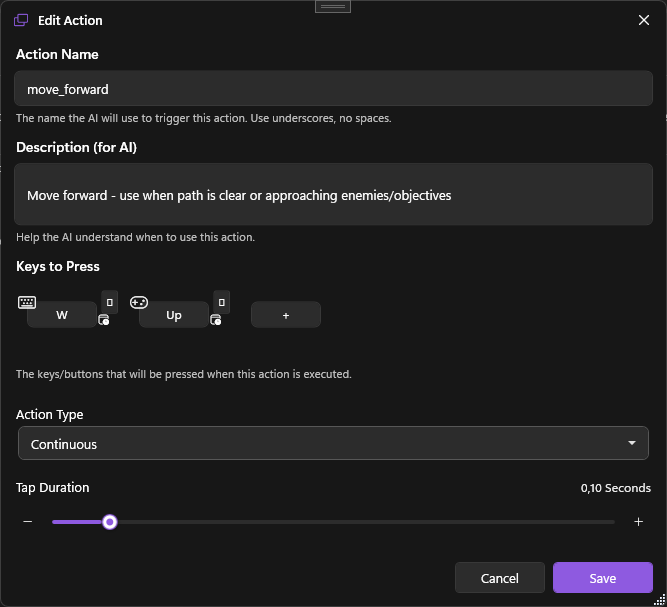
Each action has:
- Name — what the LLM should return (e.g.
move_forward) - Description — what this action does + when to use it (the LLM reads this!)
- Keys — what PowerAim sends when this action is picked. Multiple keys = pressed together. Mix keyboard / mouse / gamepad.
- ActionType — Instant / Continuous / Modifier / Toggle
The Edit dialog opens via the profile editor and provides a per-action form.
Ollama settings
On the AutoPlay page:
| Setting | What it does | Default |
|---|---|---|
| Request Timeout | Seconds before giving up on an LLM call. Increase for slow models. | 30 |
| Temperature | LLM creativity (0.0 deterministic, 1.0 creative). 0.1–0.3 is recommended for gaming. | 0.3 |
| Image Max Size | Compress capture to this max dimension before sending. Smaller = faster but less detail. | 512 |
| Image Quality | JPEG quality 1–100 for the sent image. Lower = faster network round-trip. | 70 |
These are global — they apply to every AutoPlay profile.
Learning mode
AutoPlay has an opt-in learning subsystem that captures your playstyle while you play and biases future AutoPlay decisions toward what you actually do.
On the Settings page → AutoPlay Learning card:
| Setting | What it does |
|---|---|
| Record Playstyle | While on, every AI tick samples your current input state and accumulates state→action counts |
| Apply Learned Bias | Bias AutoPlay’s selector toward the recorded preference |
| Bias Strength | 0 (ignore the model) – 1 (let the model dominate). 0.5 default. |
| Sample Interval | Min ms between samples (50–1000) |
The model is a tiny JSON file at %LocalAppData%\PowerAim\autoplay_model.json that you can inspect, share, or version-control.
Tips
- Start with
moondream. It’s tiny and decides in ~100 ms on most GPUs. - Lower the DecisionInterval as you get a feel for your model’s speed. Moondream can sustain 5+ decisions/sec; qwen2.5-vl might be ~1/sec.
- Iterate on the GameContext prompt. Small wording changes massively change behavior. If AutoPlay won’t shoot, mention “shoot enemies” more aggressively.
- Use Match Process to scope a profile to one game. Otherwise the LLM might apply your FPS profile to your menu screen.
- Watch the Tactical Actions counter in the Debug Overlay — it tracks the number of actions taken.
Troubleshooting
- Ollama status red — the API isn’t reachable. Check:
- Ollama is running (
ollama listin a terminal shouldn’t error) - The Base URL on the Settings card (default
http://localhost:11434) - Firewall isn’t blocking localhost
- Ollama is running (
- LLM picks the same action over and over — increase Temperature (0.5–0.7), refine the GameContext to discourage that action.
- Actions don’t reach the game — make sure the foreground window is the game when AutoPlay tries to act. Some keys might also need elevation (run PowerAim as admin if your game requires it).
- AutoPlay is too slow — switch to a smaller model (
moondream), drop ImageMaxSize to 256, drop ImageQuality to 50. - AutoPlay locks the same key on (e.g. W stays pressed forever) — a Continuous action got “stuck” because the model never picked a different action. Disable AutoPlay → all keys release.