Calibration Wizard
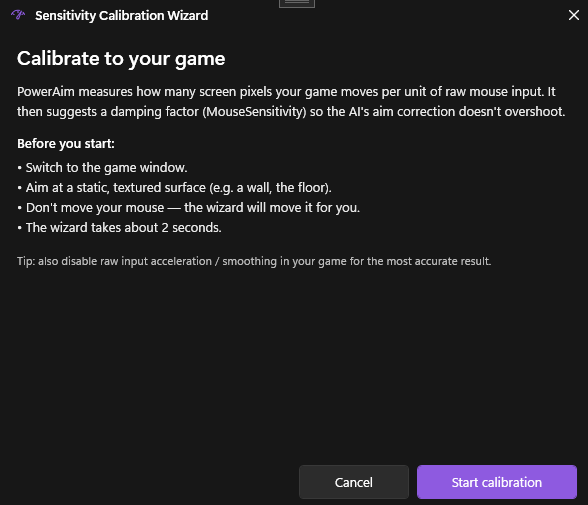
A guided 4-step wizard that automatically measures your in-game sensitivity and writes a MouseSensitivity value that matches. No more trial-and-error.
What it does
The wizard:
- Temporarily forces
GlobalActive = falseso the aim pipeline doesn’t fight the calibration - Sends a known sequence of mouse-delta impulses
- Measures how much your in-game cursor actually moved by reading captured frames
- Computes the multiplier needed to make PowerAim’s pixel-deltas match in-game pixel-deltas
- Offers to apply the result to
SliderSettings.MouseSensitivity
It’s the same logic you’d get from a 360°-rotation manual calibration, but driven from the screen capture so you don’t need a math degree.
How to use
- Open the game you want to calibrate for. Be in a quiet area — no enemies, no UI overlays in the FOV.
- Alt-tab back to PowerAim
- Aim Tools → AimConfig → Calibrate Sensitivity
- Read the welcome step, then click Start Calibration
- The wizard runs for a few seconds; don’t move your mouse during this period
- The result step shows the suggested
MouseSensitivity - Click Apply to write it to your config, or Discard to keep your old value
Wizard states
The wizard cycles through four steps internally (you’ll see all of them):
- Welcome — explanation + Start button
- Running — sends impulses, captures frames, computes
- Result — shows the suggested value with Apply / Discard
- Error — capture failed or detection was inconclusive
Tips
- Don’t move your physical mouse during calibration. Even small drift skews the measurement.
- Calibrate per-game. Different games have different mouse sensitivities and acceleration curves. Re-run the wizard whenever you switch games.
- Calibrate after a config change. If you change Mouse Movement Method (SendInput → LGHub etc.), re-run the wizard — different drivers send different deltas.
- The wizard restores
GlobalActive. Whatever it was before you opened the wizard, that’s what it’ll be when the wizard closes — even on errors.
Troubleshooting
- “Calibration inconclusive” — usually means the wizard couldn’t detect a stable feature to track. Move closer to a wall or a clear texture and try again.
- Result is wildly different from manual setting — check the Mouse Movement Method. If you’ve recently switched from SendInput to LGHub, expect a different scale.
- GlobalActive stays off after the wizard — that’s a bug; report it. Workaround: toggle Global Active on manually.