Admin UI
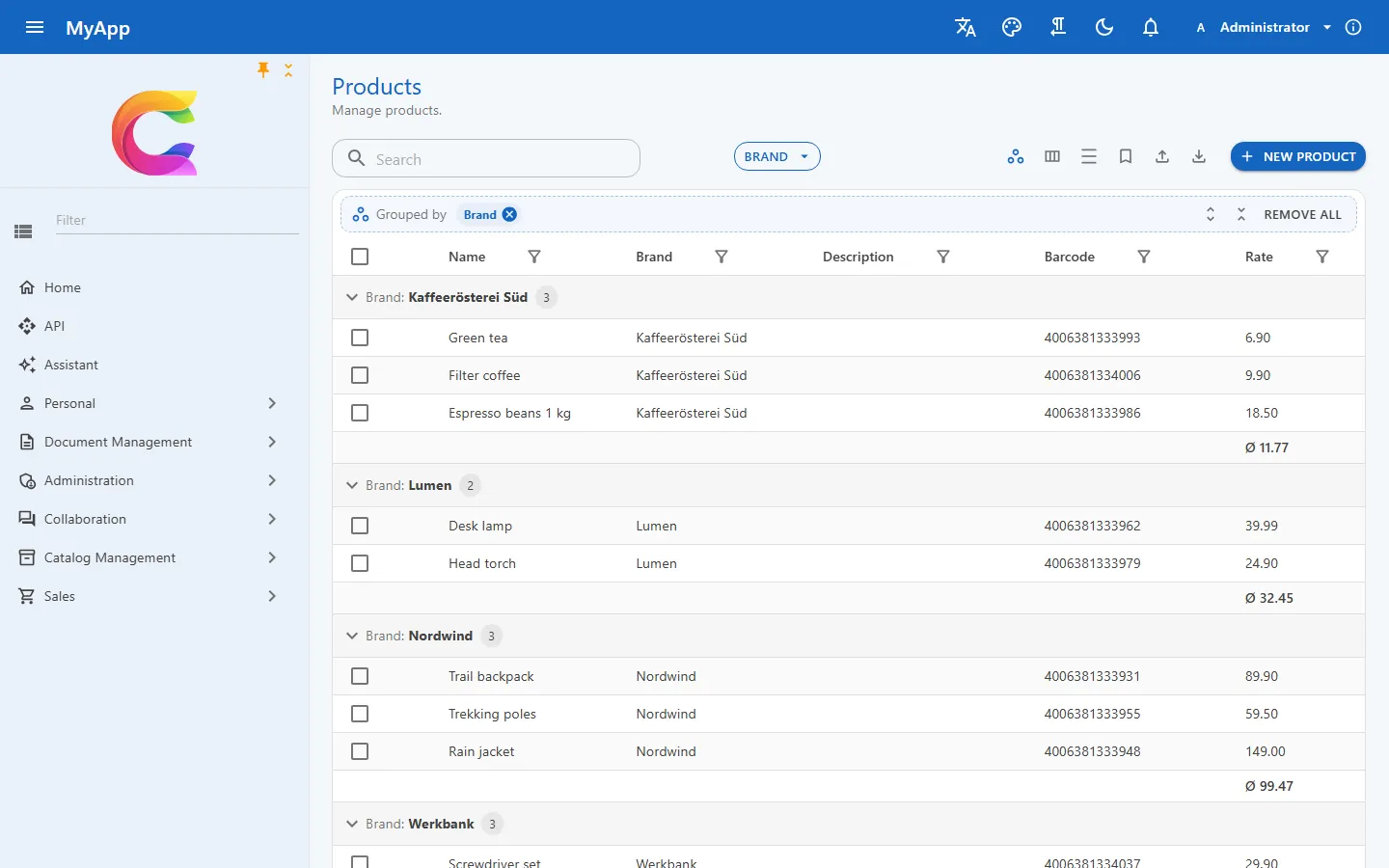
The demo's product list, grouped by brand with an average below each group. Grouping is on by default; the average is the only part the page declares, as an aggregate on the rate column.
Coworkee.Client.Blazor is a Blazor WebAssembly shell on MudBlazor and MudBlazor.Extensions. It brings the layout, a permission-aware menu and the admin pages (users, roles, settings, themes, translations, audit log and a few more). Your app adds its own pages next to them.
builder.Services.AddCoworkeeClient(new Uri(builder.HostEnvironment.BaseAddress), options =>
{
    options.AppTitle = "MyApp";
    options.AppLogo = "logo.svg";
});
builder.Services.AddSingleton<INavigationContributor, MyAppNavigation>();
Menu and edit forms
Each CoworkeeNavItem from an INavigationContributor names its permission, so the menu only shows what the user may open. When a role changes, the client reloads its permissions and the menu follows without a page reload.
public IEnumerable<CoworkeeNavItem> Items =>
[
    new("Products", "/catalog/products", Icons.Material.Outlined.ViewCarousel, CatalogPermissions.Products.View, Group: "Catalog"),
];
The menu itself is a MudExTreeView with a filter box. Users can pin it as an icon strip.
Forms for plain models come from Dialogs.ShowEditAsync(title, model, save), which renders a MudExObjectEditForm in a full-height side sheet. It slides in from the side the user clicked on. If the API rejects the save, the dialog stays open and shows its validation messages; a foreign key gets an ODataPicker with one line of meta configuration.
The data table
CoworkeeDataTable<T> is a MudBlazor grid over an OData set. The server pages, sorts and counts.
<CoworkeeDataTable T="ProductDto" EntitySet="Products" Expand="Brand" SearchFields="SearchFields"
                   CreatePermission="@CatalogPermissions.Products.Create" OnCreate="CreateAsync" OnEdit="EditAsync">
    <Columns>
        <PropertyColumn Property="p => p.Name" />
        <PropertyColumn Property="p => p.Brand!.Name" Title="Brand" />
    </Columns>
</CoworkeeDataTable>
From that markup users get facets (as pills above the rows or in a side panel), a filter in every column header, the query builder as Advanced filter and grouping by dragging a header. A column with a facet shows the facet's options and counts in its filter, so the two never disagree.
Saved views keep the whole arrangement under a name: filters, column order and widths, grouping, sorting. They are stored in the user's settings and follow the user to another device. The link button copies an address that opens the table exactly as it looks.
Paging is either a pager or endless scrolling; administrators set the default, users override it. Export covers CSV, JSON and Excel of the full filtered result. Tables over [Realtime] entities reload when someone else changes a row, which is mostly useful and occasionally startling.
Themes, sign-in and loading screen
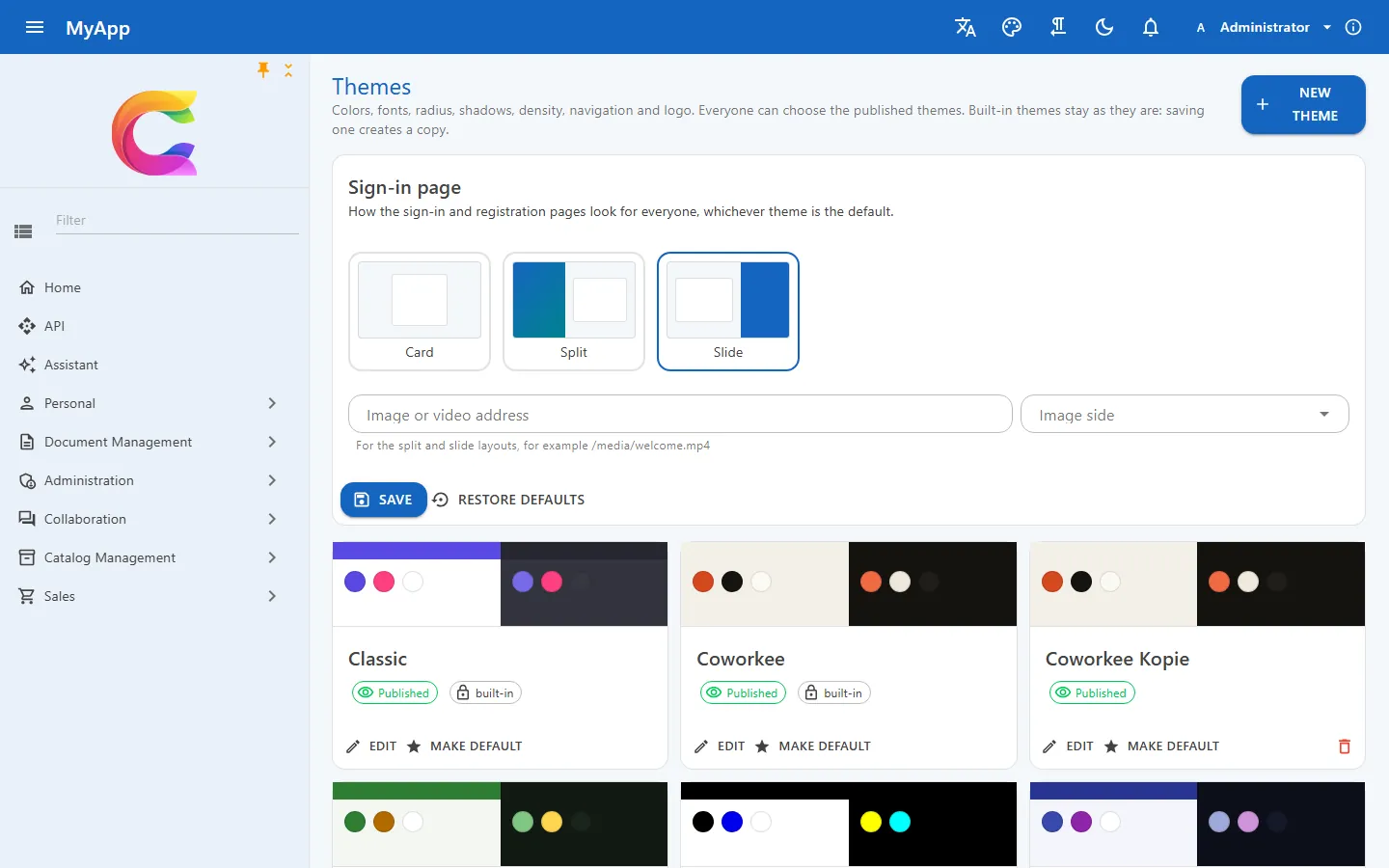
Fifteen themes ship, Ocean is the default. Administrators edit them with a live preview and publish them; each user then picks one, plus light or dark mode. An app brings its own colors:
context.Services.Configure<ThemingOptions>(themes =>
{
    themes.DefaultTheme = "Shop";
    themes.Themes.Add(new AppTheme("Shop", "Ocean", new Dictionary<string, string> { ["Primary"] = "#0a7d5a" }));
});
The sign-in pages of the auth server take colors, font and logo from the default theme. Layouts are Card, Split (image or video beside the form) and Slide, where a colored panel moves across between sign-in and registration. An own layout is one Razor file in the auth host.
While WebAssembly downloads, CoworkeeLoadingScreen shows a server-rendered screen in the theme's colors, with the real download progress in a ring around the logo. If the start fails, it turns into an error message with Reload.
Anything in the shell can be swapped with builder.Services.ReplaceComponent<CoworkeeUserMenu, MyUserMenu>(). The layout is split into parts such as CoworkeeAppBar and CoworkeeNavMenu, so a change replaces one piece.
The same apps can also run in a web desktop: coworkee new Shop --airworks adds an AirWorks client with windows and a taskbar, signed in through the same auth server and talking to the same API.
System status
Administration → Monitoring → System status (/cw/admin/system-status, permission Settings.Manage, system organisation only) shows the installation at a glance: versions of the library, the app and .NET, the database with pending migrations and the outbox backlog, background jobs with the last failures and a link to the job dashboard, mail waiting or failed in the last seven days, realtime connections, Redis, file storage, machine translation and the AI assistant. Each module adds its own card through ISystemStatusContributor (services.AddSystemStatus<T>()), and so can your app.
Status: the library's admin pages live under /cw/admin/... (see Pages of the library). Grouped rows cannot be virtualized, so a grouped table falls back to the pager.
Reference: client and layout, data tables, replacing components, theming, sign-in pages.